Annotations (3D View, Quick View, Planar View)
|
1238888 |
To attach a an annotation to a specific position in your project:
- Open a view of a scan, a cluster, or a scan project.
- Select the annotation tool
 from the toolbar, then click the point of interest in the view.
 - The new annotation and its Documentation Properties dialog are displayed.
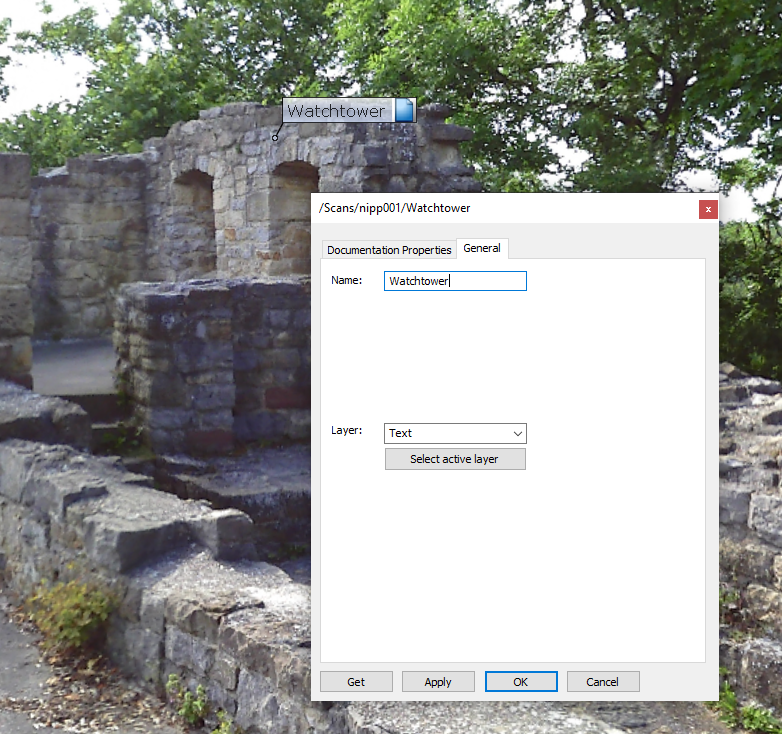
Figure 10-9 Annotation in 3D view
Documentation Properties
You can enter detailed information in the Documentation Properties dialog.
Position – determines the position of the annotation in the working area.
Description – detailed information about the annotation.
Hyperlinks – hyperlinks to files or websites.
-
Add a new hyperlink by entering its address into the lower text field, then press Add.
-
Change the order of the hyperlinks with the Up and Down buttons.
-
Delete them with the Remove button.
-
Open them by double-clicking the list item or by pressing the Open button.
General Tab
You can enter the name of the annotation in the General tab. Since an annotation usually consists of a text string, its Layer should be defined as Text.
Create Annotations at the Scanner Position
To create an annotation at the scanner position:
-
Right-click the scan in the structure view.
-
Select New > Documentation.
The Documentation Properties dialog is displayed. -
Proceed as described above.