Colorizing Using Scanner Based Pictures
|
1238888 |
The scanner based pictures are stored within the scan and are visible in the structure view.
Colorize One Scan
-
In the structure view, right-click the scan and select Operations > Color/Pictures > Apply Pictures.
This will open the scan and all its pictures.
Then, it will remove any distortions from the pictures. Finally, it will add the color information to the scan points.
-
Save the scan afterwards by clicking the
 icon in the Workflow bar.
This is not done automatically.
Colorize All Scans in a Scan Folder
In the Structure view, right-click the scan folder and select Operations > Color/Pictures > Apply Pictures.
In this case, the scans are saved automatically afterwards if you have the correct setting of Save modified scan points.
If you get an out of memory error during applying the pictures, you should check the Colorize all scan points option under Tools > Options > Scan Data. If it is switched off, switch it on and try again. If you want to colorize raw scan data (raw scans that have not yet been loaded in SCENE, manipulated and saved again), the original gray values of these scans will be overwritten by the color information. The gray values get lost. SCENE will inform you before that happens. It is recommended to load the raw scans at least once and save them afterwards. For example, this will be done if you apply the recommended standard filters to the scans while preprocessing the scan data with the preprocess option.
Export pictures
If you want to manipulate the taken pictures with a professional graphics editing program before applying them to the scan, you can export them to your hard drive.
In the structure view, right-click the scan and select Operations > Color/Pictures > Export all Pictures.
This will open a dialog to select the storage location and to select the export format of the pictures.
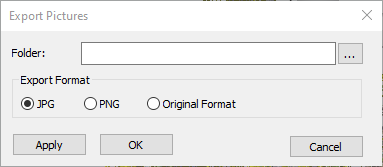
Figure 10-50 Export all pictures
Original format will export the pictures without changing their format. JPG will export them in JPEG-format, PNG in Portable Network Graphics format.