White Balance
|
1238888 |
Scans may appear with biased colors when they were recorded under certain lighting conditions.
The White Balance function offers the possibility to select a scan point of which you know that, in reality, it has a white color.
SCENE will then adjust all colors of the scan according to this setting.
White balance is available in planar view, quick view and 3D view. For 3D view, a scan point cloud is required.
-
In the structure view, right-click the scan, then click Operations > Color/Pictures > White balancing.
-
Click a scan point which should be displayed in white color. If the currently shown view is not suitable, you can rotate the scan by pressing the Ctrl key and clicking the scan.
SCENE will now use a sphere-shaped selection around the selected scan point to adjust the colors.
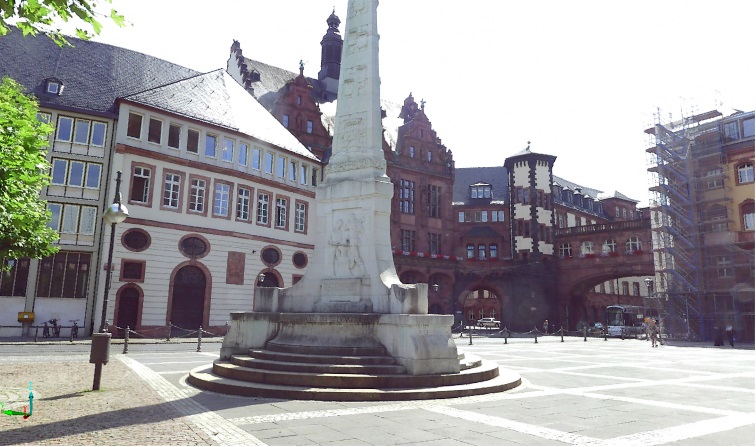
Figure 10-56 Scan before using white balance
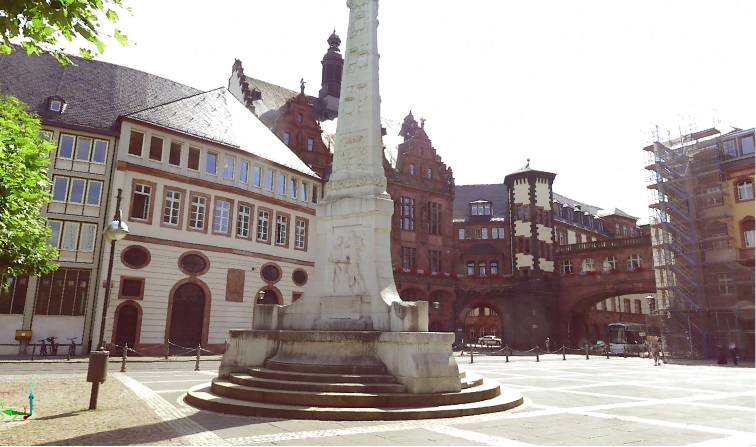
Figure 10-57 Scan after using white balance
SCENE will ask you whether you are satisfied with the result. If you do not like the result, click the No button, and the settings will be undone.