Measure Objects
|
1238888 |
Probably you frequently have to measure distances to level surfaces, for example to the wall, the floor or the ceiling. In this case you should fit a plane through the wall and measure from the plane to the point you are interested in. When using a plane, the measurement is automatically taken perpendicular to this plane.
Object measurements are also available in the structure view.
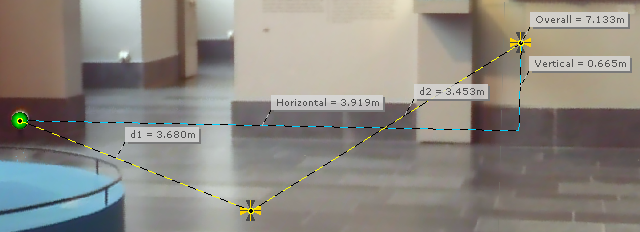
Figure 10-13 Object measurement
You can measure between objects of the following types:
Point objects
-
Sphere (A sphere is a point object because its central point is used for measurement)
-
Checkerboard
-
Point Object, Corner Point
-
Scan, i.e. the scanner icon which stands for a scanner position
Figural objects
-
Plane, including Expanded Plane, Rectangle, Slab
-
Pipe
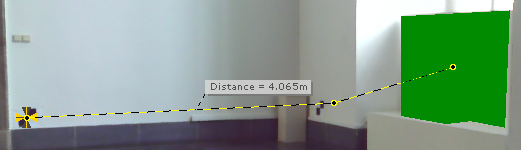
Figure 10-14 Checkerboard point – plane measurement
-
Open the Measure dropdown list in the toolbar and click Measure Objects.
The appearance of the dropdown list depends on your previously selected measuring mode. -
To select objects for your measurement, select them with the left mouse button.
You can also select objects in the structure view this way.
It may happen that objects superpose. In this case, a small dialog opens which lists these objects.
-
Double-click the one you want to use, and continue measuring.
You can measure the distance between more than two objects if you hold down the Shift key when clicking on the next object. However, an object measurement can only contain one figural object.
A new object measurement gets added to the Measurements folder of the structure view.
If the position or location of the objects used for the measurement change, for example, by a new fit or by updating the registration, the measurement is automatically updated.
Measure Object
The representation of a measurement is called a measure object. To open the Properties dialog of a measure object, double-click it in the structure view, on its label, or near a measure line.
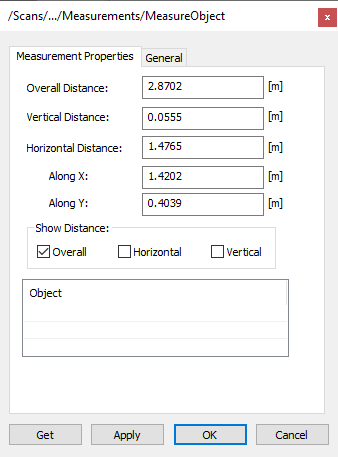
Figure 10-15 Properties of measurement object
The Properties dialog provides distance information and a list of the involved objects of an object measurement.
You can hide the lines for the vertical and horizontal distances and the label for the overall distance by selecting the Show Distance checkboxes.