Creating a Mesh in Planar View
|
123-2026-04-28-888 |
Meshes created in the planar view do not have the same quality as meshes created in the 3D view.
1. Create a 2D selection as described in Selecting Scan Points in the Planar View or the Quick View.
2. Right-click the selection, then click Current Selection > Mesh. Doesn't exist --> Context menu Create objects > Mesh, node is created but can't be opened.
The Mesh Generation Parameters dialog is shown.
To create a mesh in planar view, select the Mesh Generation Parameters in the following dialog:
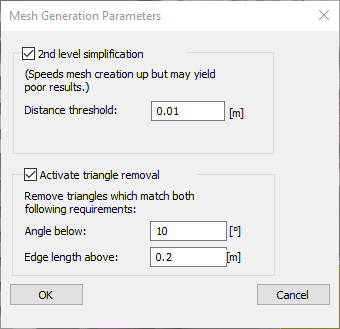
Figure 10-43 Mesh generation parameters
2nd level simplification: Activate 2nd level simplification based on the distance between scan point and nearest triangle.
Distance threshold: A triangle approximates all scan points within this distance threshold. The smaller the value, the more triangles you will get.
Activate triangle removal: If an object is in front of a different object, neighboring scan points shouldn’t be connected by triangles. Here you can activate the removal of triangles which match both of the following requirements.
Angle below: The angle between the scanner and the surface of the triangle. The larger the value, the more triangles will be removed.
Edge length above: The edge length of the triangle. The smaller the value, the more triangles will be removed.
Although the resulting mesh may be a relatively small collection of triangles, its appearance can show more details. This is done by a texture, which is similar to a photo glued onto the triangles. By default the display contains textures.
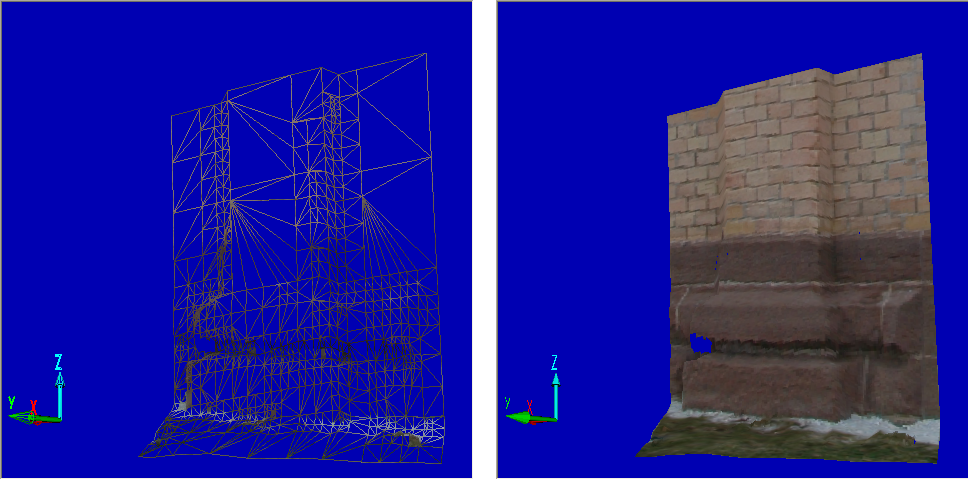
Figure 10-44 Mesh with and without texture