Updating Your License Manually
-
To access the Licensing Manager, open InTouch, and click Run on the Licensing Manager tile.
The FARO Licensing Manager opens.
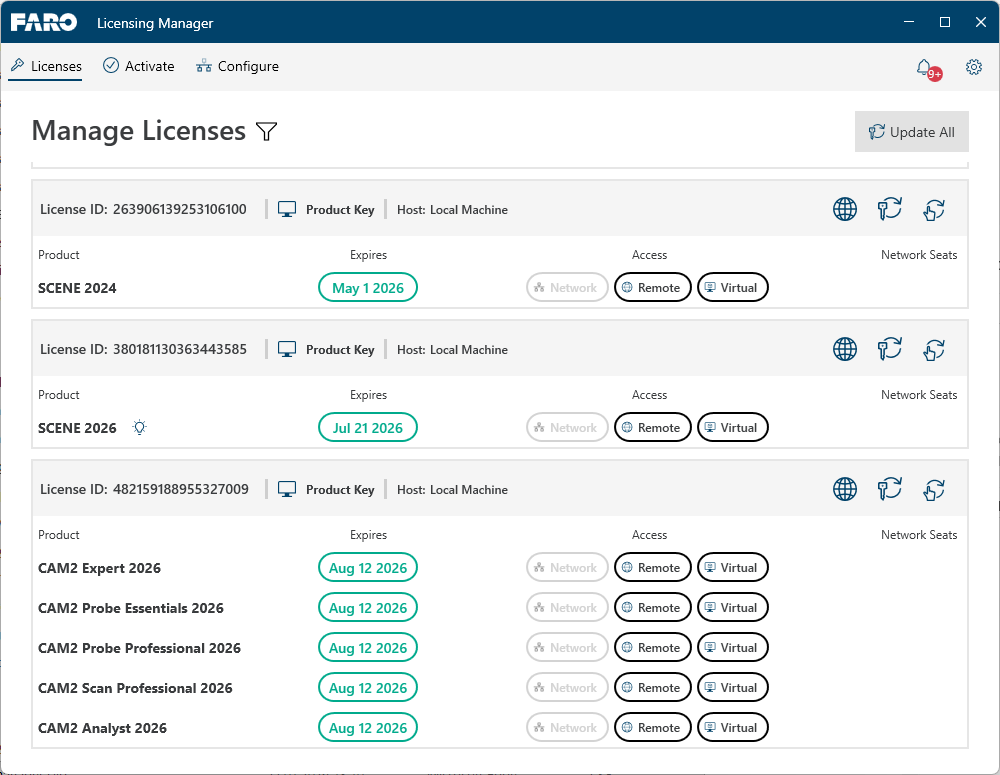
Figure 19-3 FARO Licensing Manager
-
In the FARO Licensing Manager, click Manage Licenses.
The licenses which need updating are displayed.
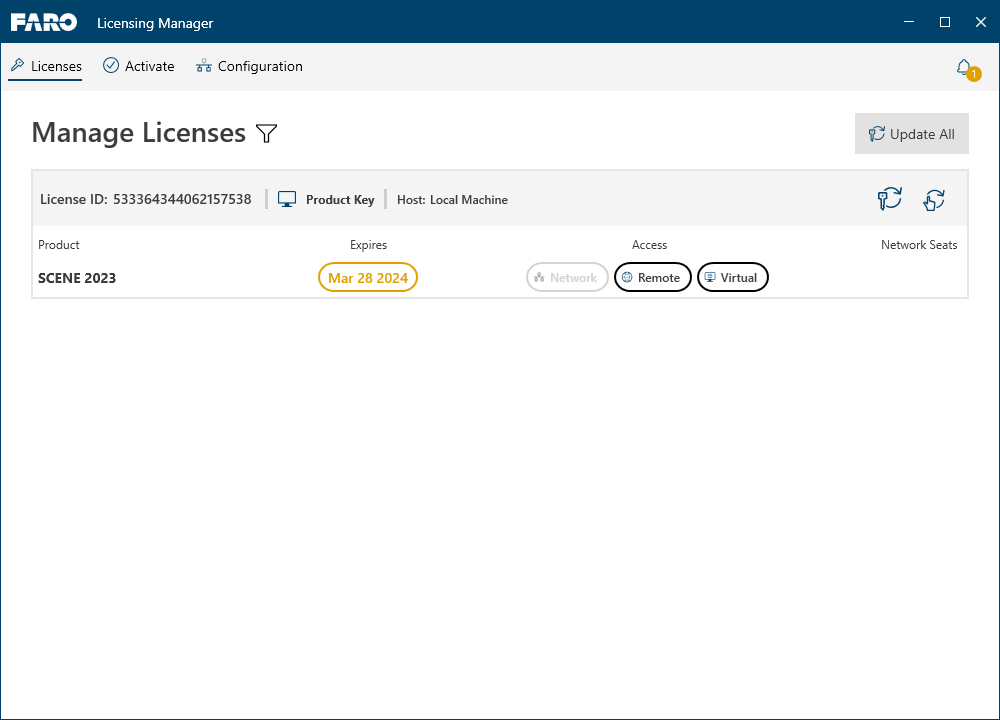
Figure 19-4 Update license view
-
Click icon
 .
.
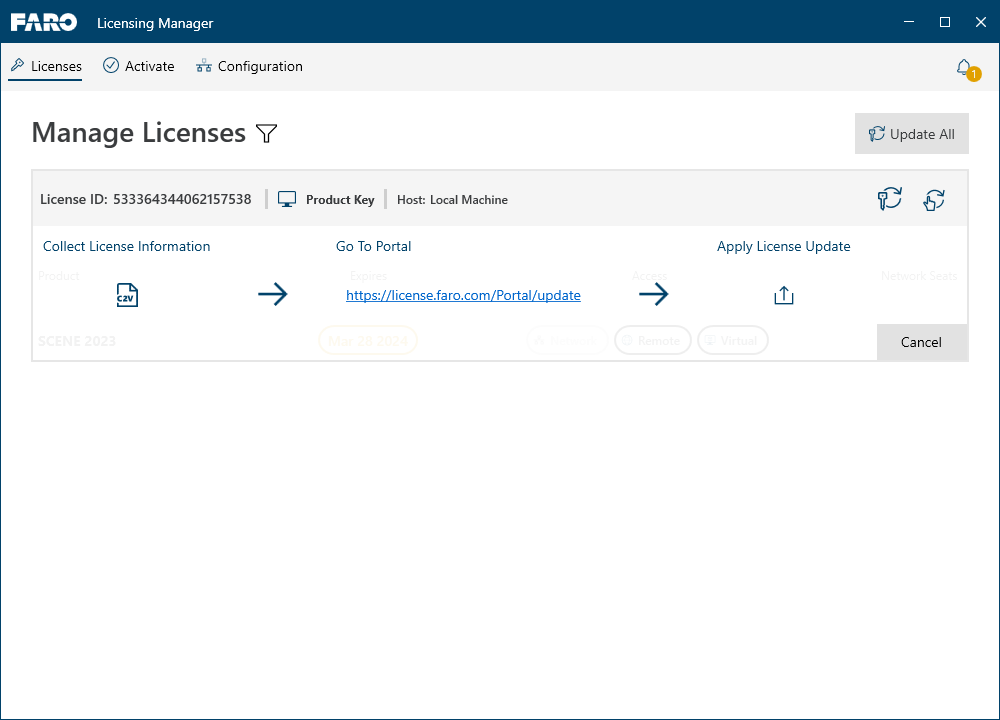
Figure 19-5 Update license manually
-
Click icon
 and save the .c2v file to your computer.
 -
Then, click the Go to Portal link.
The FARO Licensing Portal is opened in a browser. -
In the FARO Licensing Portal, click button Browse, then select the .c2v button from your computer.
-
Click button Update.
(You may need to try more than once.) -
Click Download zip file.
-
Go the zip file location and unzip the .v2c file contained in the downloaded zip file.
-
Go back to the FARO Licensing Manager.
-
Click the Apply License Update icon
 and select the .v2c file that you have downloaded and unzipped in steps 8 and 9.
Once the license is updated successfully, it will be shown in the list and a green notification symbol will be appear next to the icon at the top right side of the FARO Licensing Manager.
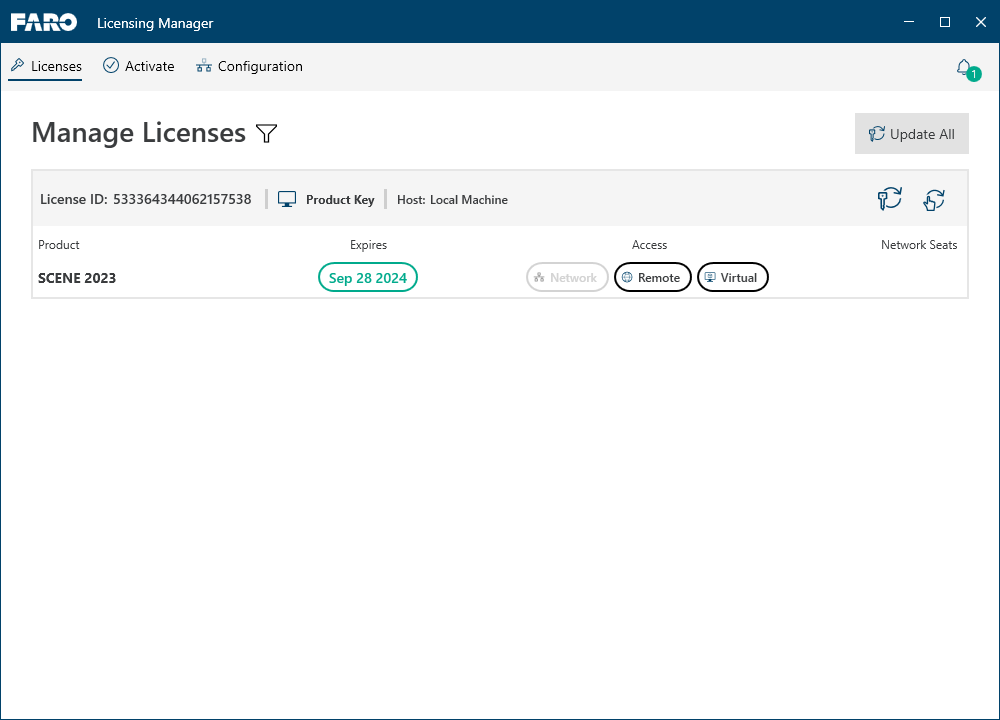
Figure 19-6 License updated successfully