Expert Settings: Adapt Bundling Weights
|
1238888 |
The default weights have been set using many projects from different applications and are valid for most cases.
We do not recommend changing the default weights unless you have considerable experience in surveying networks adjustments, in least squares or you have been told by a FARO employee to modify the bundling weights. For example, you should be aware that the inclinometer is an angular value (weight 8) while the target point is a position (weight 1). This does not mean that the the inclinometer has 8 times more weight than the target point.
If you need to change the bundling weights, proceed as follows:
You can select any item in the structure view and modify the default weight of that object. If you click a cluster, you will modify the weight of all elements in that cluster.
-
Right-click the object you want, either in the structure view or in the registration view.
-
In the context menu, select Operations > Registration > Bundling Weights.
The following dialog is displayed.
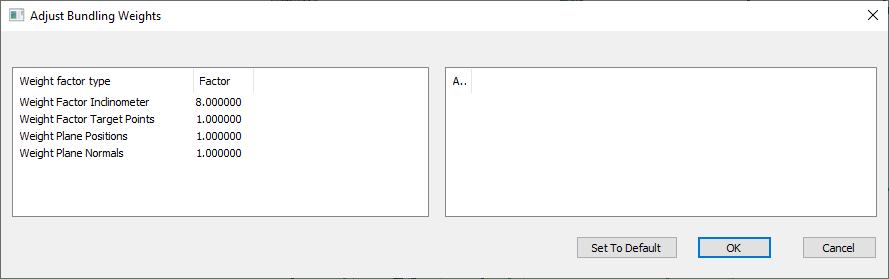
Figure 9-32 Adjust bundling weights - example
-
Click into the line you want in column Factor and change the value.
-
Click OK.
You can reset any changes to the default value by clicking button Set To Default.