Adding Damage to a Symbol
You can add damage to any 3D symbol (except for structures). For animated symbols, you can apply damage to a selected KEP anywhere along the path. For example, you can add progressive damage to an animation in which a car hits multiple cars and then stops when it hits an object.
To add damage to a symbol:
-
Add or select a symbol.
-
From the Symbol tool panel, select Damage.
-
Recreate the damage to the vehicle in the Damage tool panel.
Damage Tool Panel
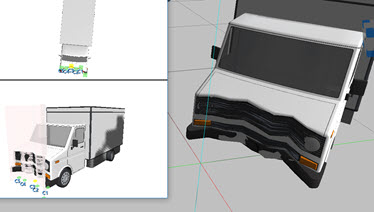
The Damage Manager allows you to recreate damage on up to six panels on the symbol. Adjust the damage by using the grips, or enter values for each damage point in the table. Damage displays in the preview window and in the drawing.
| Damage | Displays the active damage profile and maintains the chain of damage profiles. |
| Location |
Select the location of the damage. Front
Left
Rear
Right
Top Front Rear
Top Left Right
|
| Width | Adjust the width of the damage coordinates. |
| Offset | Moves the damage coordinate system along lateral lines. |
| Coordinate Table | Values for Depth and Offset for the corresponding point on the Damage Window. |
| Analysis | Displays editable fields and calculated fields of characteristics that impact damage, such as weight, stiffness A and B, impact angle, width, gravity, energy and EBS (Equivalent Barrier Speed). |
| CDT | Import information from a data table. |
| Report | Create a report for the damage. |
| Delete | Delete the damage profile. |
| Close | Closes the Damage Manager and saves damage profiles. |
| Damage Window | This view includes a graphic coordinate system with grips that you can drag to reflect each point of damage. The damage displays in the coordinate table. |
| Preview Window | Displays the inflicted damage. You can use mouse commands to change the perspective. |
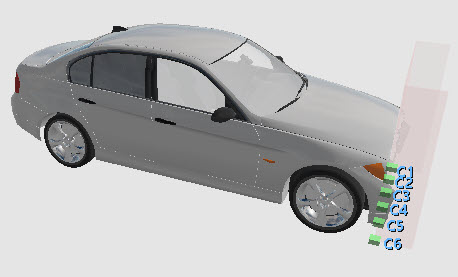
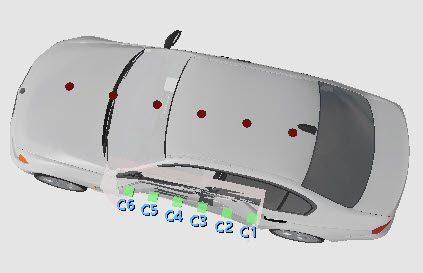
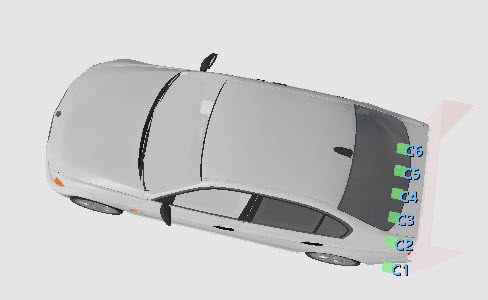
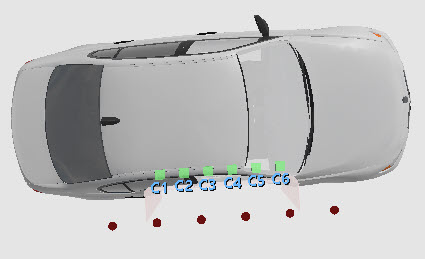
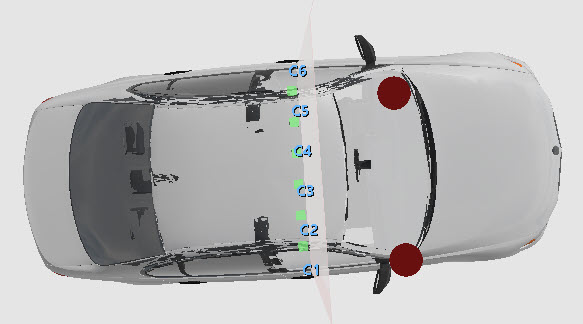
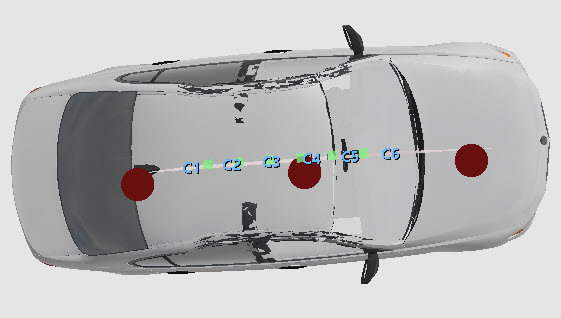
The damage displays during animation.