Adjust Misalignments in the VideoMode Trajectory
|
1238888 |
When capturing your site with the HoloBuilder VideoMode, it can happen that the resulting trajectory is not properly aligned. Most of the time is caused by challenging environments or not following the best practices for capturing that affect the processing of the 360° videos.
You can start the trajectory adjustment in the Sphere XG Viewer.
-
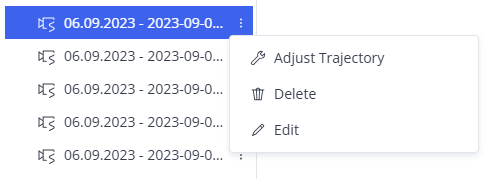
Click the three-dots menu of a VideoMode capture in the project structure view.
-
Click Adjust Trajectory .
The trajectory tool will be opened.
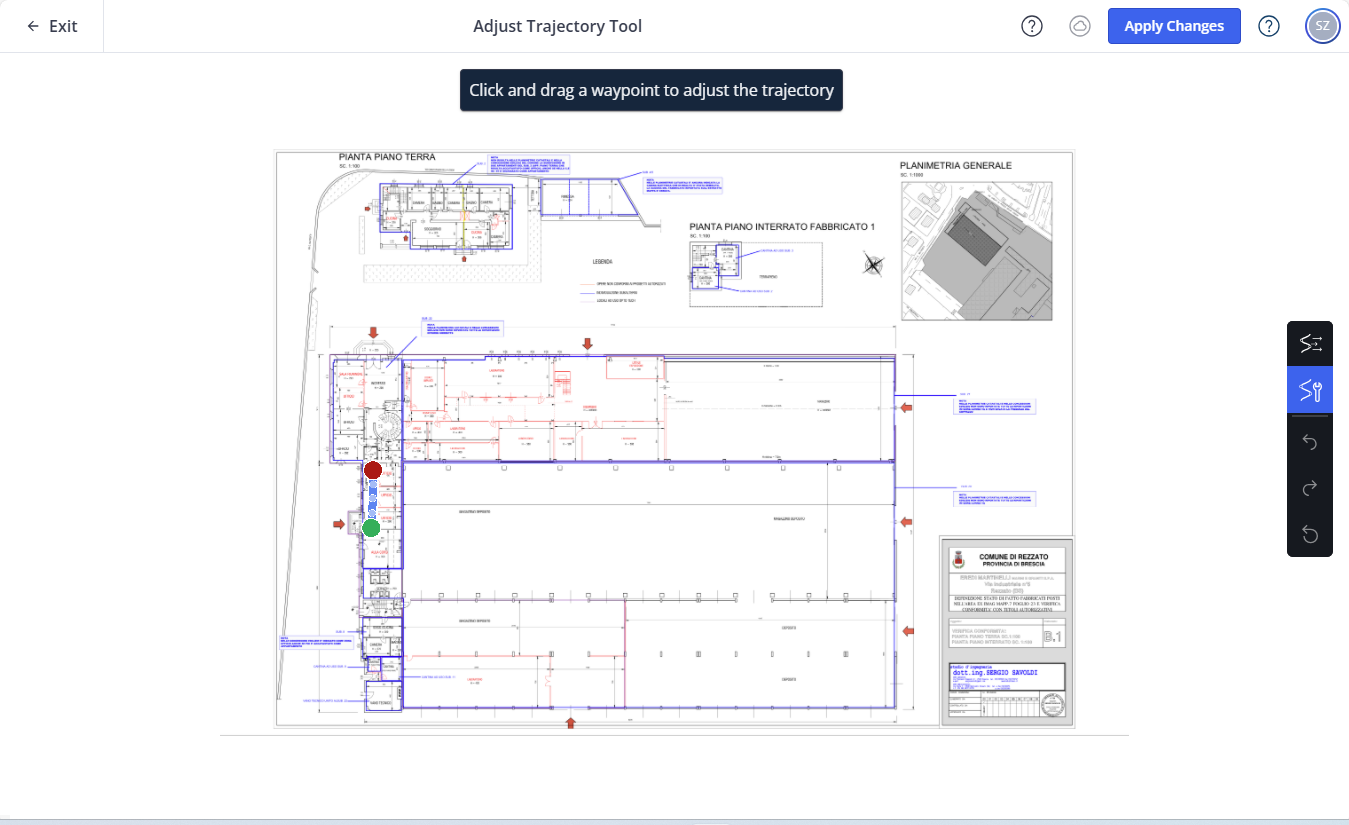
Figure 1-196 Adjust trajectory tool
Add and Remove Anchor Points
-
Click the
 icon to enable the align to sheet mode.
 -
Left-click to add an anchor point anywhere in your sheet.
Right-click an anchor point to remove it.
You need one anchor point for scaling the trajectory and two anchor points for translating and rotating the trajectory.
Translate Trajectory with an Anchor Point
-
Left-click to add one anchor point.
-
Click and hold the anchor point and drag the trajectory to the position you want.
Rotate Trajectory with an Anchor Point
-
Left-click to add one anchor point.
-
Click and hold the anchor point and rotate the trajectory.
Scale Trajectory with two Anchor Points
-
Left-click to add two anchor points.
-
Click and hold one anchor point and scale the trajectory.
While scaling, the trajectory will also be rotated depending on your mouse movements.
Move and Lock Waypoints
-
Click the
 icon in the toolbar to enable the move waypoints mode.
 -
Click a waypoint and drag to adjust the entire path.
Click a waypoint to lock its position. Click on it again to unlock it. Note that you cannot move locked waypoints.
General Procedures
Waypoint preview
Hover the mouse pointer over a waypoint to see its preview.
Translate sheet and trajectory
To translate both, the sheet and trajectory:
Click and then hold the left and right mouse button anywhere in the sheet. Then drag the sheet and trajectory to the position you want.
OR
Click and hold the middle mouse button, then drag the sheet and trajectory to the position you want.
Undo, redo and reset changes
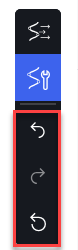
Use the highlighted icons in the toolbar to undo and redo the last change or to reset all changes.