Filter for the Time of Capture
|
1238888 |
With the Time of capture filter, you can filter your project for a specific capture date. Capture date refers to all additions you make to a project, for example added scans, 360° photos or location markers.
This filter will hide any waypoints in the project structure view and the Viewer that do not match the assigned filter. It will also filter out annotations that match the tag filter.
-
Click the
 icon next to the search field in the project structure view.
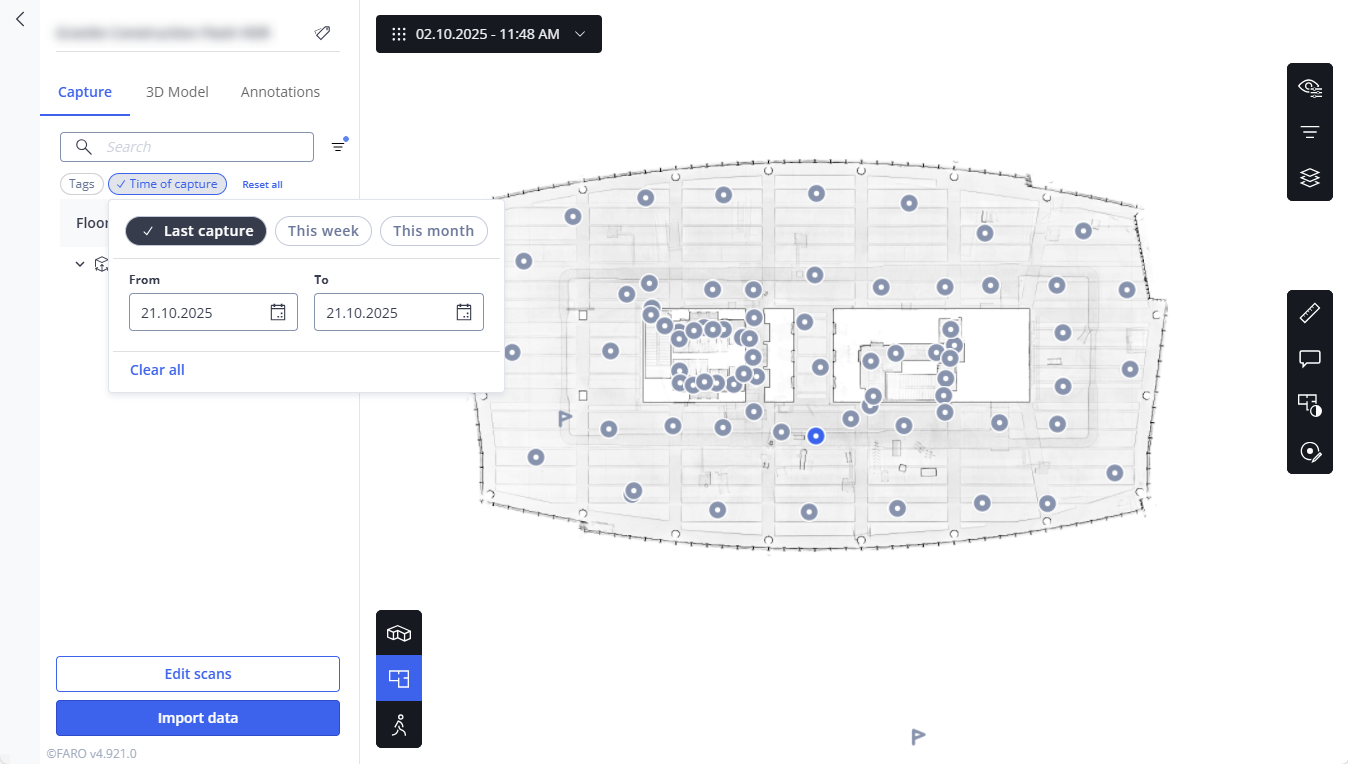
Figure 1-209 Filter for last capture
-
In the filter form, select one of the preset options or a time range
If the filter is active, it is highlighted. In addition, the filter icon has a blue dot to indicate an active filter when the Search and filter bar is not visible.
You can deselect all tags by clicking Clear all.
To reset all filters, i. e. tag filters and the time of capture filter, click Reset all.
Filter Options
Depending on the time filter you select, the project structure view will change and all objects in the Viewer that do not match this filter will be grayed out.
Last capture: Only the captures with the most recent date will be shown in the project structure and in the viewer.
This week: The changes of this week will be shown in the project structure view and in the Viewer.
This month: The changes of this week will be shown in the project structure view and in the Viewer.
From - To: Enter a time range to show all changes within this time range in the project structure view and in the Viewer.