Make Reliable Measurements in your 360° Photos without Depth Information
Complement measurements taken in the 3D view by measurements in your 360° photos (without depth information).
The approach described below works for 360° photos without depth information. If your 360° photos have depth information, you can simply start measuring.
-
Go to the walkmode view of your project and navigate to the location where you want to make a measurement.
-
Click the
 icon in the toolbar on the right side.
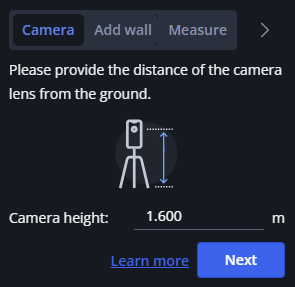
Figure 1-167 Enter camera height
-
Enter the Camera height from the ground to the center point of the camera lens as accurately as possible.
-
Click Next.
-
In the next three steps, pick points at both bottom corners of a wall and then at the top of the wall.
You should select 360° photos which are as vertical as possible.
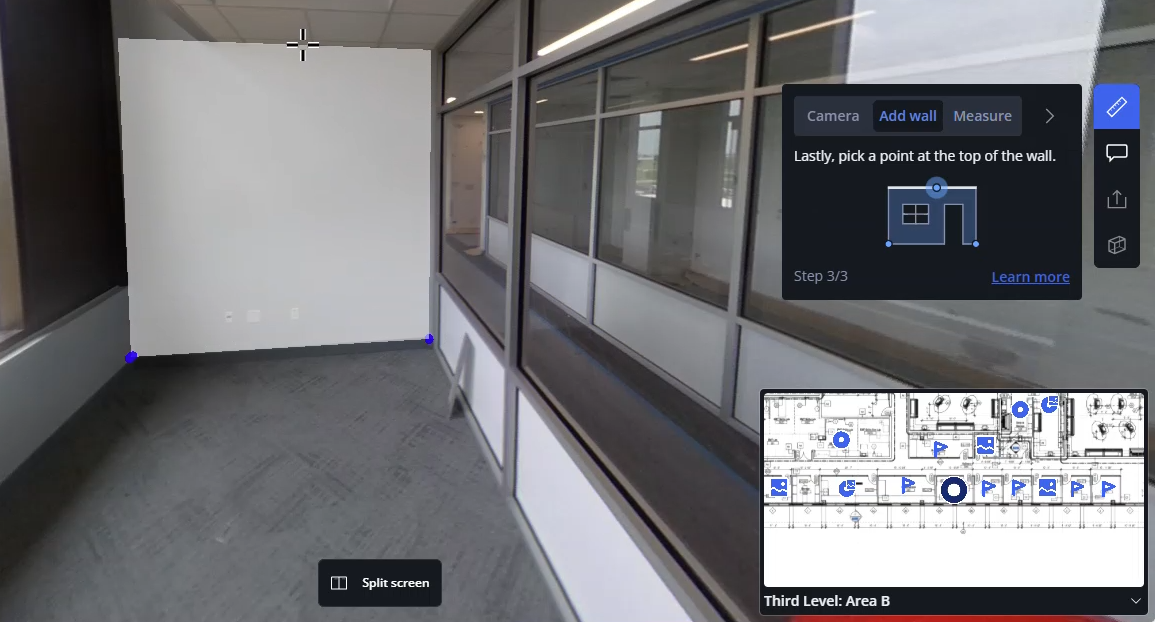
Figure 1-168 Select point at the top of the wall
You can now measure distances on this wall or between this wall and other walls. To add new walls, click Add wall in the panel.
Tip: Hold the SHIFT key to measure horizontal or vertical distances.