Projects: Map View
|
1238888 |
-
Click the Projects entry in the task panel.
-
Then, click the
 icon at the top of the Projects page to open the map view.
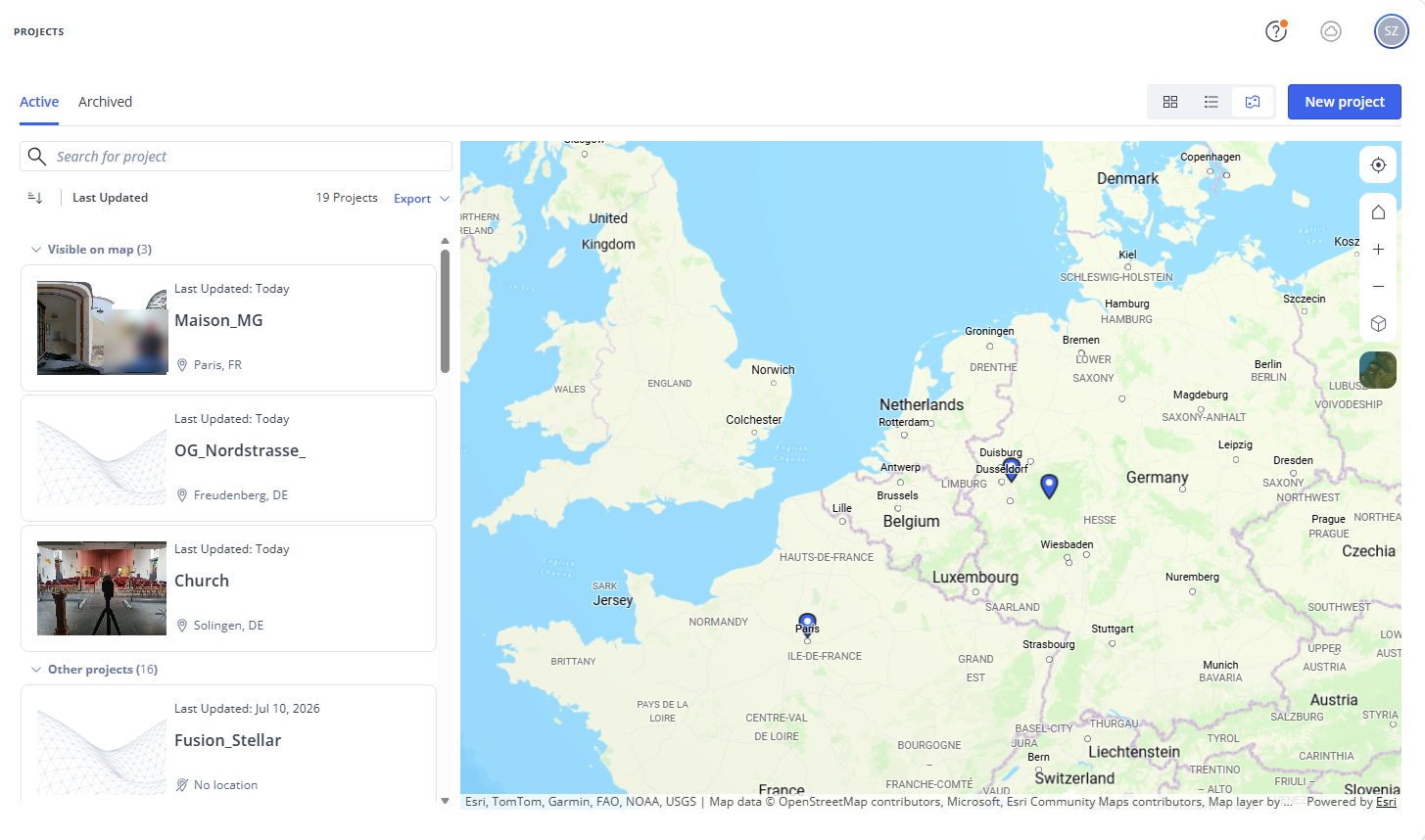
Figure 1-24 Projects map view
In this view, projects that have valid address details or coordinates, will be displayed as markers on a world map.
Clicking the icon will open the Update project location form, see Edit the Project Address Data or Coordinates for more information.
If you already have projects with address data, those are not converted into coordinates right away. If you reenter them in the either in the address field or in the Update project location form a dropdown with address selections will open. Selecting a suggestion will make the coordinates available in the project.
The projects are displayed in two categories:
-
Visible on map: The list adapts to the locations you can actually see on the map. By default, a world map is displayed to show all projects with address data or coordinates. If you zoom in to a specific region or zoom in to view a specific project, only those project that are actually displayed on the map will be listed in the Visible on map category.
-
Other projects: This list contains all projects without address data or coordinates.
-
To open a project in the map view, click the
 icon (displayed when you hover the mouse pointer over a project).
 -
To open the Project overview page of a project, click the three-dots menu of the project, then click View details.
Map Settings
You can make the following settings for the map:
 : Expands the map to full screen.
 : Zooms in to your current location.
 Resets the view to the default zoom and tilt.
+/-: Zooms in or out of the map.
 Tilts the map creating a 3D view.
 : Changes to the satellite view of the map. Clicking the icon again returns to the map view.