Settings: Subscriptions
|
1238888 |
The Subscription page gives you an overview of your current subscription plan and lets you view and manage tokens, the Sphere XG currency you can use to buy cloud-based services. Starting from October 2026 and SCENE 2027.0, you can also assign scene seats if you want to use both, SCENE and Sphere XG in a subscription plan.
You need the Workspace Admin role to view this page and access the tokens management.
-
Click the task panel entry Settings to open this page.
-
Then click the Subscription tab.
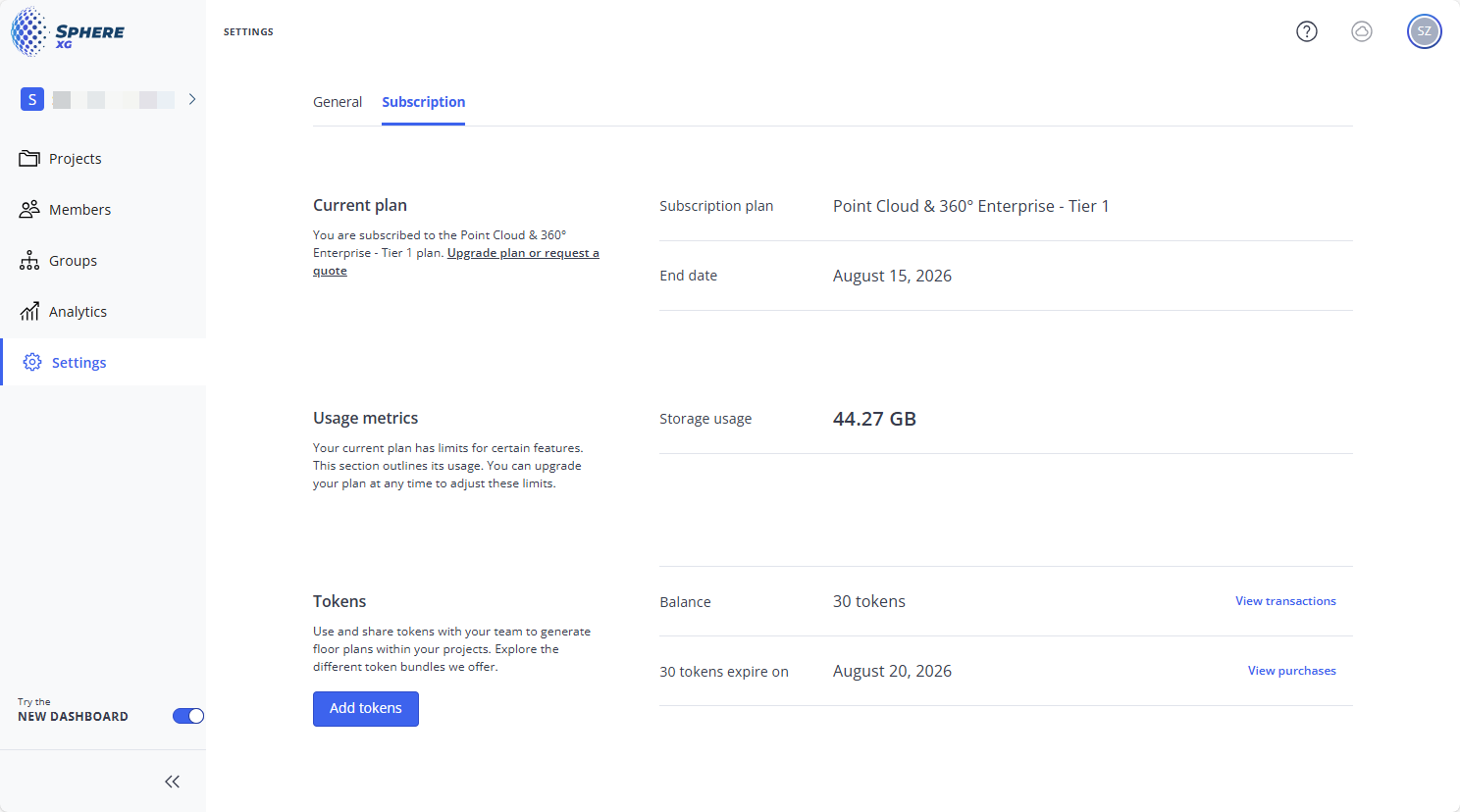
Figure 1-47 Subscription tab
Current Plan
This section shows your current subscription plan and its end date.
Storage
This section shows the storage available in your current subscription plan and how much of it is currently used.
Sphere XG Seats/SCENE Seats
Each subscription plan has a limited number of seats for Sphere XG and SCENE. These sections show the available seats and the seats that are currently assigned to users.
Clicking on the View members link will open the members page where you view the current distribution of seats and you can also assign free seats to members.
See also Subscriptions to Sphere XG and SCENE for an overview of subscriptions in Sphere XG and Subscriptions to SCENE and Sphere XG for subscriptions in SCENE.
Tokens
This section shows an overview of your tokens and tokens transactions and allows buying tokens. Note that unused tokens expire automatically after 12 months. Make sure to use your tokens before they expire. The Subscription page will show a warning when the expiry date is approaching.
Subscription plans for Sphere XG and SCENE come with a defined number of tokens that is refilled every year.
Purchase Tokens
-
To purchase tokens, click the Add tokens button.
The Add tokens page will be opened.
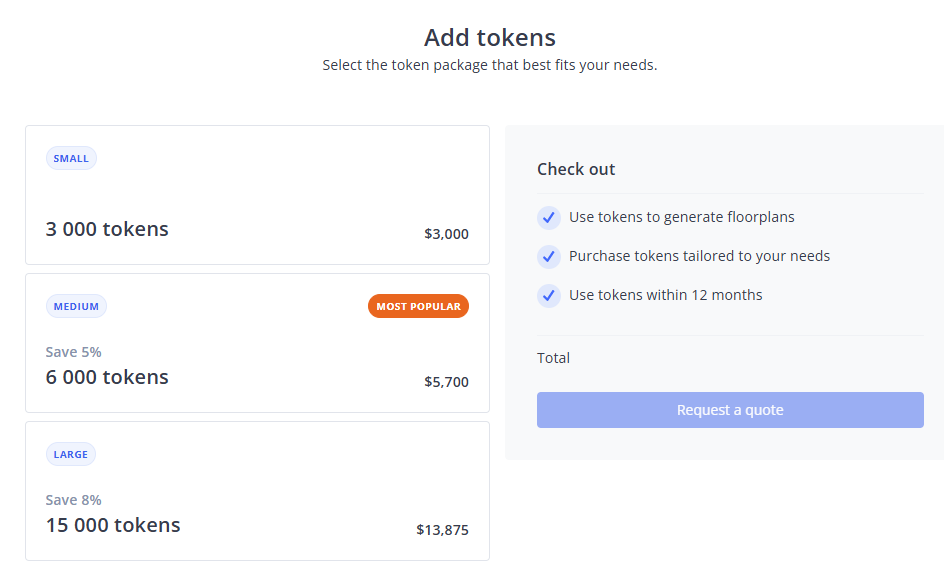
Figure 1-48 Add tokens page
-
Click to select the tokens package that suits your requirements.
-
Click Get quote.
-
Confirm your request.
You will get a quote from the FARO Sales team.
View Transactions and Purchases
-
To view all tokens transactions, click the View transactions link.
-
To view all tokens purchases, click the View purchases link.
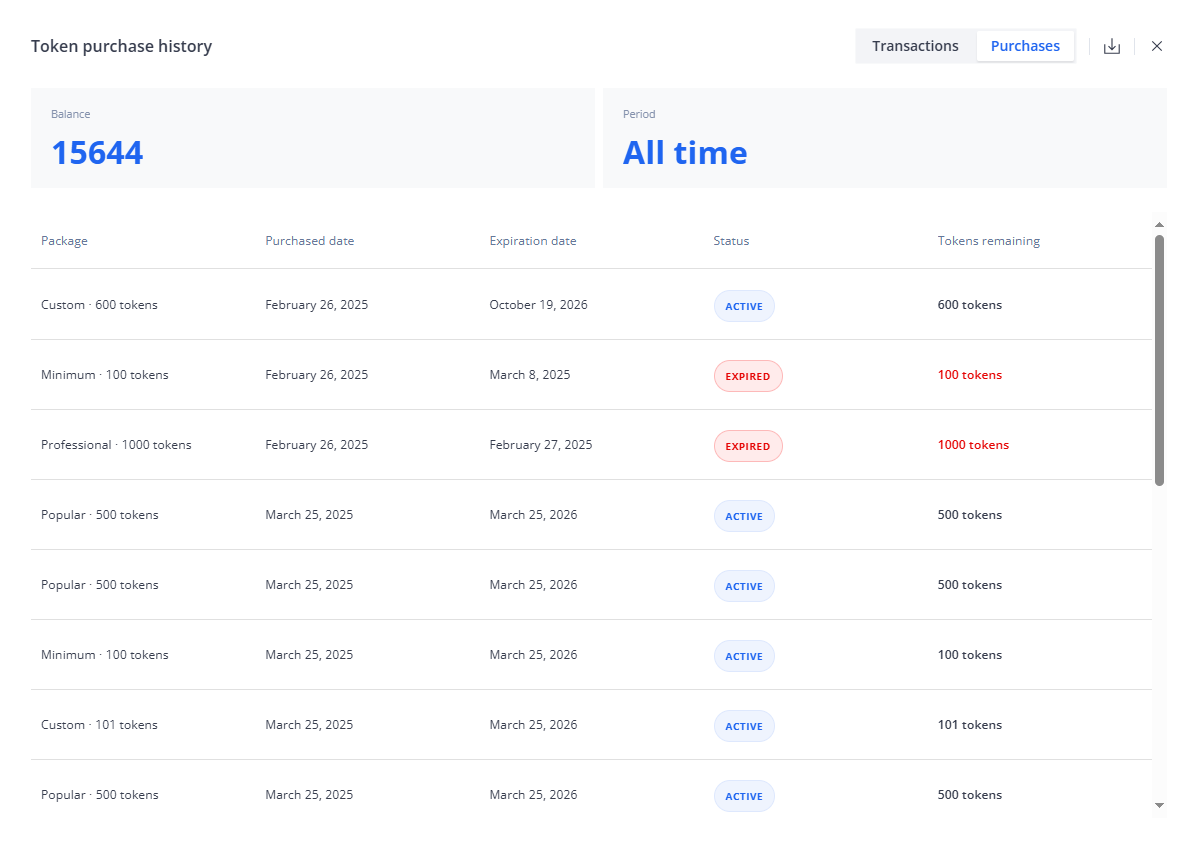
Figure 1-49 Tokens purchase history
You can change between transactions and purchases by clicking the tabs on the upper right side of the form.
Export: Exports content in various formats, see also Export Projects, Members and Groups.