Licensing SCENE with the FARO Licensing Manager
|
123-2026-04-28-888 |
The software is licensed via the FARO Licensing Manager.
-
To access the FARO Licensing Manager, click the
 icon to open the settings page.
 -
Then, click the
 icon to open the FARO Licensing Manager.
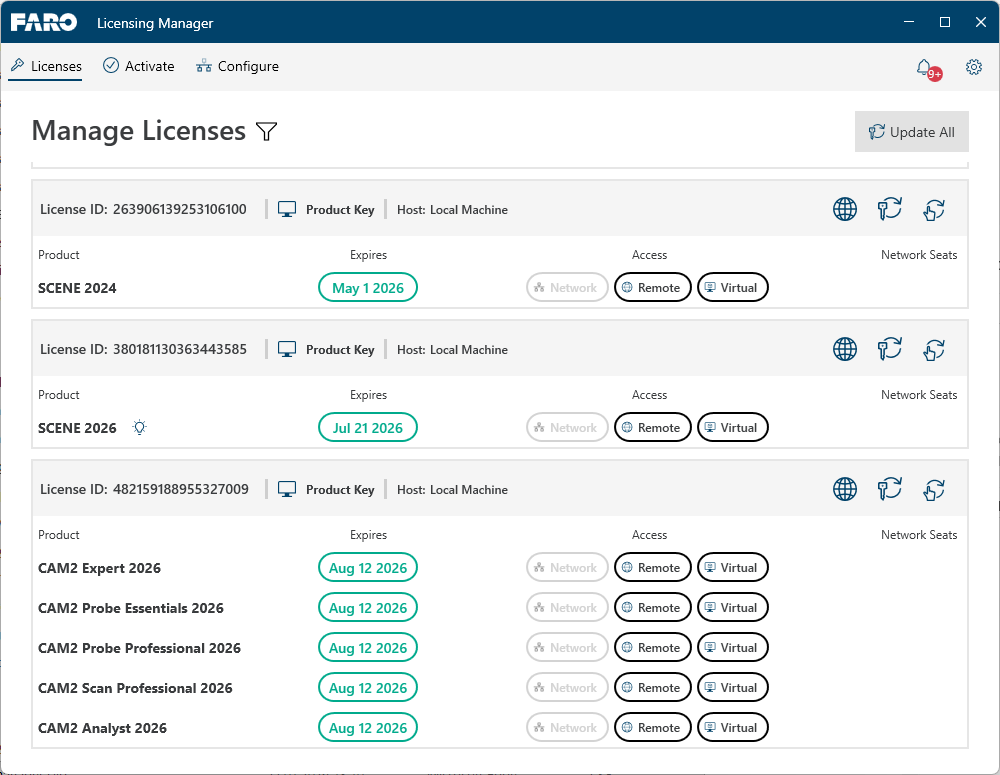
Figure 2-1 FARO Licensing Manager
-
Click the Activate tab.
-
Enter your product key in field Product key and click button Activate.
The license will be added and activated. Note that this may take some time.
Update License Automatically
Click icon  for the license you want to update.
-
The update may take some time. If the update does not work even after several attempts, you can also update your license manually.
If you want to update all available licenses, click button  . To filter licenses, click icon
  and select the filter criterion you want from the context menu.
Once the license is updated successfully, it will be shown in the list and a green notification symbol will be appear next to the icon at the top right side of the FARO Licensing Manager.
Update License Manually
-
Click icon
 .
. -
Click icon
 and save the .c2v file to your computer.
 -
Then, click the Go to Portal link.
The FARO Licensing Portal is opened in a browser. -
In the FARO Licensing Portal, click button Browse, then select the .c2v button from your computer.
-
Click button Update.
(You may need to try more than once.) -
Click Download zip file.
-
Go the zip file location and unzip the .v2c file contained in the downloaded zip file.
-
Go back to the FARO Licensing Manager.
-
Click the Apply License Update icon
 and select the .v2c file that you have downloaded and unzipped in steps 8 and 9.
Once the license is updated successfully, it will be shown in the list and a green notification symbol will be appear next to the icon at the top right side of the FARO Licensing Manager.