Inspect Connection
|
1238888 |
You can retrieve information about a connection and make changes as follows:
-
Click the connection you want to investigate in the registration view or in the structure view.
The connection is highlighted. The connection object in the structure view is also highlighted. -
Click
in the toolbar.
The Manual Alignment dialog opens. At the same time, the two scans connected by the connection are opened in the correspondence view.
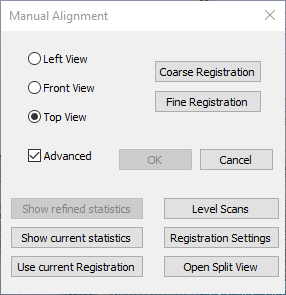
Figure 9-5 Manual Alignment dialog
Left View/Front View/Top View: Changes the orientation of the scans in the correspondence view.
Coarse Registration: Runs a coarse registration (top-view).
Fine Registration: Runs a fine registration (cloud-to-cloud).
Advanced: Marking this checkbox extends the dialog and shows the following options:
Show Refined Statistics: Shows the connection statistics after you have run a fine registration of the connection.
Show Current Statistics: Shows the current connection statistics.
Use Current Registration: Uses the current registration settings.
Level Scans: Uses the tilt sensor of the Focus data to level the scans if they were not leveled.
Registration Settings:
Open Split View: Opens the correspondence split view.
If you have worked on correspondences in the correspondence split view, make sure to close the correspondence split view and the Inspect Connection View and then run Optimize Scan Positions.
The OK button is only available after you have run a Fine Registration or clicked option Use Current Registration.