Automatic Registration Tools
|
1238888 |
Using the tools in the order in which they are shown in the toolbar runs a complete registration.
The following registration options will work in the selected cluster and its subclusters. If you have not selected a cluster, the registration will be run for the cluster that is displayed in the registration view and its subclusters.
 Coarse Registration
If you run a coarse registration any previous registration information will be overwritten.
After the coarse registration is finished, the Scan Manager will be displayed. This is a pre-registration method to position the scans in a way that is good enough to run a fine registration. After running a coarse registration, there might still be scan point errors with a significant value. You need to run a fine registration.
If some scans are not in a roughly right position after the coarse registration is finished, you can go to the correspondence view and change the positioning manually.
 Fine Registration
Runs a fine (cloud-to-cloud) registration. Note that the scans must be pre-registered before running a fine registration.
Depending on your environment and the scan pre-alignment, you can change the Average subsampling point distance and the Maximum search distance as described below in section Registration Settings Dialog.
For optimum results, you should leave all clusters unlocked. The only exception to this recommendation occurs if you are registering to reference points. You can find a detailed tutorial in the FARO Academy.
When the registration is finished, the Scan Manager is displayed. If you go to tab Scan Point Errors, you can sort for the highest error value and double-click it. The connection in question is then highlighted in the registration view and in the structure view.
If you are satisfied with the registration results, you should lock the cluster that you have registered. Otherwise, the registration will be displayed as not verified. If the cluster has subordinate clusters, locking the topmost cluster will also lock all subordinate clusters.
Note that if a fine registration is run after a coarse registration or on a project that has been pre-registered in Stream, the connections between scans created by the coarse registration or Stream are refined and new connections are searched by the fine registration.
 Target-based Registration
Deletes all non-forced correspondences and runs a target-based registration.
You can check the registration results in the Scan Manager of the cluster or root object that you have registered.
Registration Settings Dialog
Clicking the three-dots icon behind Target-based Registration opens the Registration Settings dialog. In this dialog, you can override settings that you have made on the registration settings page.
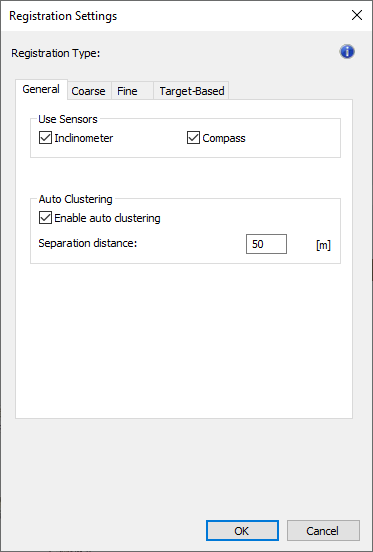
Figure 9-9 Registration Settings dialog
Tab General
Inclinometer: Leveling ensures that the z-axis of the registered scan corresponds to the z-axis defined by the inclinometer. If you select this option, the inclinometer measurement is used by the registration bundle adjustment. The inclinometer weight in the bundle adjustment is properly set by default, but you can change it from the registration weights menu, see also Expert Settings: Adapt Bundling Weights.
Compass: If the scans were recorded with a FARO Focus Laser Scanner equipped with a built-in compass, orientation information is available for the single scans. Enable this option to use this information as auxiliary information for the correspondence search. If the correspondence search cannot find any correspondences that are consistent with the compass data, this may be an indicator that the compass was influenced by environmental interference and the compass data will be ignored. If you disable this option, no compass data will be used for correspondence search.
Enable auto clustering: SCENE may not be able to find a spatial relationship between all scans in your scan project and only groups of scans can be registered to each other. The registration internally recognizes which scans can be registered correctly and which can not. All groups of correctly registered scans are automatically arranged in appropriate sub-clusters (named Cluster1, Cluster2 etc.).
Separation distance: Separation distance for auto clusters.
Tab Coarse
Subsampling: The result of the registration can be adjusted through the subsampling rate. The value defines the size of the grid in which scan point homogenization is performed. The resulting grid of points will be used to perform the registration. When you move the slider, the set value will be shown. Five centimeters (0.05m) usually work for all environments. If you are indoors, in an industrial environment, you can reduce the subsampling to 0.35m or even 0.25m.
Average subsampling point distance: Displays the average subsampling point distance in the current project.
Reliability: The reliability value determines the amount of additional checks on a registration. It filters out results that could be contested. Higher values allow for more certainty, but could affect the needed time by algorithm to provide a solution. Set the slider to the value which you expect to bring the result you want. As soon as you move the button, the set value will be shown.
Tab Fine
Subsampling: see above under Tab Coarse.
Average subsampling point distance: see above under Tab Coarse. Five centimeters (0.05m) usually work for all environments. If you are indoors, in an industrial environment, you can reduce the subsampling to 0.3m or 0.35m.
Maximum number of iterations: You can define the maximum number of iterations for the algorithm to find the best solution. By default, this parameter is set to 30 iterations.
Maximum search distance: The maximum distance in which the registration searches for corresponding points. The maximum search distance must be larger than the initial misplacement. By default, the distance is set to 10 meters. If the scan pre-alignment is satisfactory, you can set this parameter to 1, 3 or 5 m.
Tab Target-Based
Enable correspondence search: Enables the search for correspondences.
Find correspondences for scan positions: Mark this checkbox if the position of a scan is known, for example, by a surveyed reference point or by a reference sphere representing the position of the scanner in other scans.
Force correspondences by manual target names: Mark this checkbox, if you want to force correspondences by target names. The targets in each scan must be named according to their counterparts in the other scans. This feature requires that targets are already detected by SCENE.
Find correspondences to References: Enables the correspondence search between targets in the scans (points, spheres, markers and checkerboards) and the reference points.
Target distribution threshold: Sets the limit for registration. If targets are too near to one another, registration will be refused. In this case, lowering the limits gives you a result.
Use checkerboard normals: If this setting is active, the normals of checkerboards are used for the correspondence search. Uncheck if the direction of checkerboards has changed from one scan to another. For example, if you use checkerboard targets that can be tilted and turned for a precise orientation to the scanner.
Calculate scan point based statistics: If this setting is active, the scan point statistics are calculated in addition to the target statistics. In other words, the registration will also return the scan point errors. You can use the result as a double-check of the target-based registration. Note however, that only the targets are used for the registration.
Use principal directions of scans: Uses planes in scans to determine a principal direction for each scan. These principal directions are used to avoid wrong registration results. This setting may be useful for scanned buildings with mainly perpendicular walls. The setting is ignored for scans without planes and should be turned off in scan projects with mainly non-perpendicular planes.
Use points for validation: Enables an enhanced validation of registered scans by comparing the scan points of the scans. This additional check may help to avoid wrong registrations.