Articulation
You can connect (articulate) vehicles such as tractor/trailers, trains, trucks pulling trailers, etc.
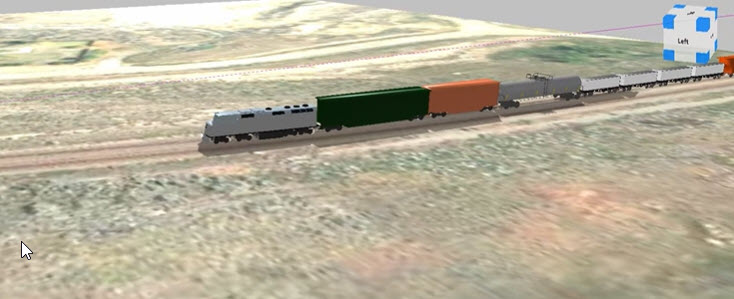

To articulate models:
Before attaching an object to a segment of an articulated model, use the AniBuddies process. See AniBuddies
-
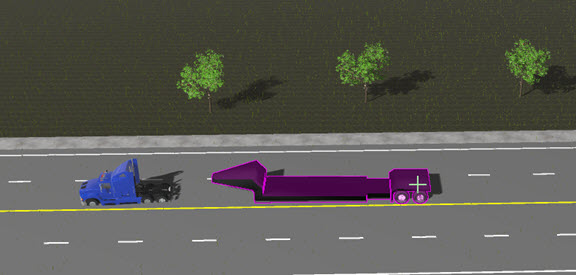
Place the symbols in order.
-
Select the lead vehicle first, and then <Shift + click> to select the connecting symbols. You can select multiple symbols.
-
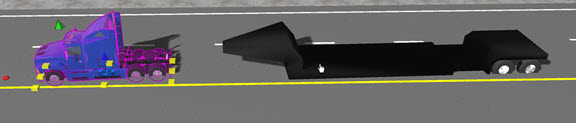
From the Multi Select tool panel, click the Articulation button. You can also select the
 Articulation tool from the Animation ribbon.
 -
Click the vehicle and identify the hitch point. Use the vertical line as a guide to drag the red grip from the trailer to the center of the hitch point.
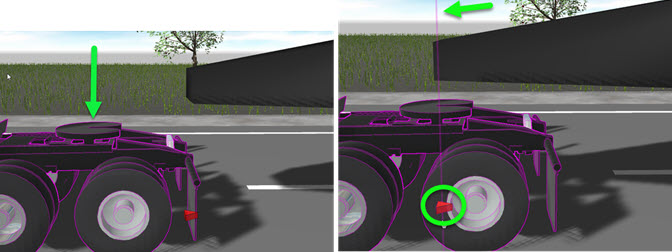
-
Click the trailer, and drag the blue grip to the hitch point you assigned for the vehicle.
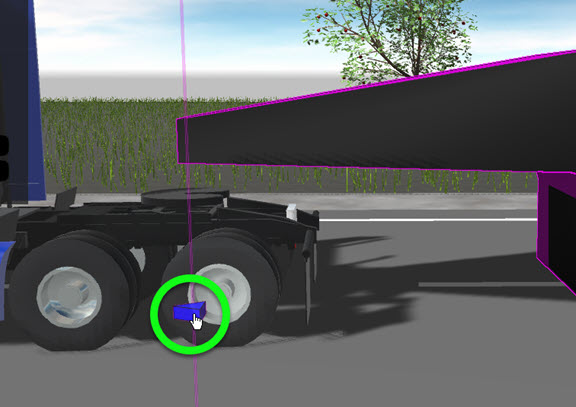
-
With the trailer selected, position the drawing to a top down view, and drag the yellow grip to the center of the rear axle on the trailer. This helps the vehicle and trailer as they move along the animation path.
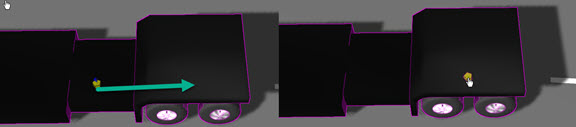
-
Configure options in the Articulation tool panel. To separate the models, select the articulated models and click Explode on the tool panel.
-
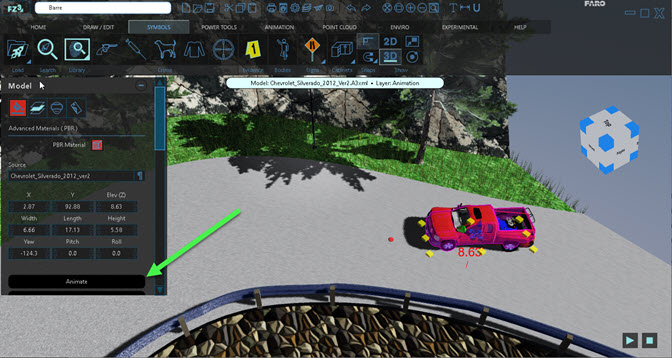
Select Animate from the tool panel to create an animation for the articulated group of models.
Articulation Tool Panel
| Layer | Open the Layer Manager and assign the object to an existing layer or create a new layer for it. |
| Rotation Offset | Adjust the offset of the model. |
| Hitch/5th Whl | Adjust the position of the hitch or 5th wheel. |
| Tongue/KP | If the model contains a tongue, you can fine-tune the position of it. |
| Animate | Click points along the animation path, and press Enter or double click to end the path. |
| Explode | Separate the articulated models. |
Adding Articulation and Annibuddies
Combine models, bodies, fire and smoke on a single animation path.
-
Insert a model into the drawing.
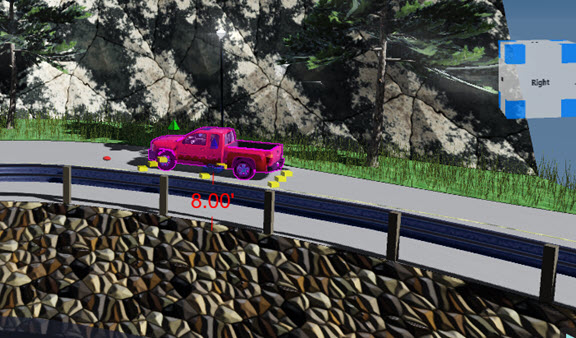
-
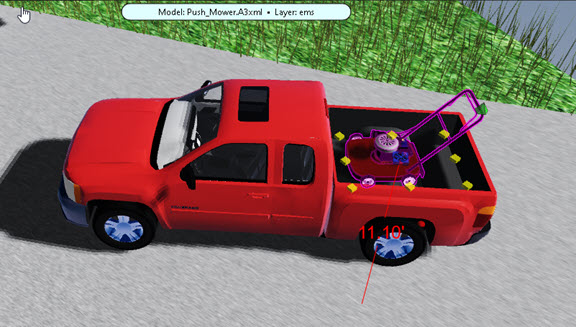
Insert and position one or more other models into the drawing.
-
Plick the vehicle model, then <Ctrl+click> the other model.
-
From the tool panel, click AniBuddies..
-
Click Animate.
-
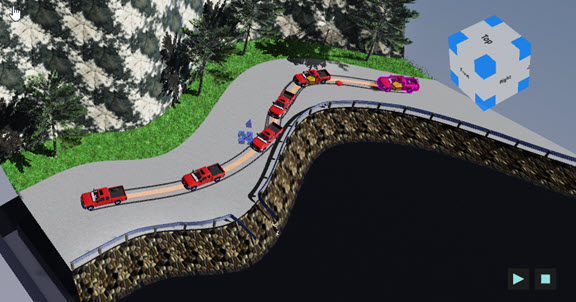
Draw the animation path.
-
Play the animation.