Animating a Symbol
To animate a symbol:
-
Select a symbol.
-
Click Animate on the Symbol tool panel.
-
Use multiple clicks to draw the animation path, which includes the path and path segments. Click to add a segment where the animation either changes direction or velocity.

-
Double-click to end the animation path or right-click and select Finish Command.
-
Use one of the following tools to adjust the animation points:
-
Grips
 Polygon: Drag the KEP or path horizontally.
 Pyramid: Drag the KEP or path vertically.
 Cube: Bezier curve grips allow for curve correction without corrupting the curve.
 Arrows: Moves the path and symbols as a whole.
 Circle: Rotate or spin the symbol.
 -
The Animation Path tool panel
-
Right-click context menu
Test the animation by clicking the Play command located in the lower-right of the screen, or use the slider to scrub across the timeline.
-
-
Configure options in the Animation Path Segment tool panel.
Animation Path KEP Tool Panel
Use the Animation Path KEP tool panel to modify the animation path and customize other options.
 Paint Color Paint Color
|
Change the color of the symbol. |
 Path Color Path Color
|
Change the color of the animation path. |
 Layer Layer
|
Open the Layer Manager and assign the object to an existing layer or create a new layer for it. |
 Damage Damage
|
(Shows on (Animation KEP tool panel) Open the Damage window. ***XREF |
 KEP Manager KEP Manager
|
Use the Key Event Points (KEP) Manager to enter precise times, velocities, acceleration values and coordinates. See KEP Manager. |
 Tire Tracks Tire Tracks
|
Tracks are the vehicle tire lines along the animation path. Skid refers to marks left on the ground. Use TrackWidth to widen or narrow the tracks to match the vehicle. Apply skid marks on animation path segments, and customize them with color, track thickness, wheelbase, track width and pivot offset parameters. |
 Time Distance Report Time Distance Report
|
Opens a PDF with the report. |
 Time Distance Report Options Time Distance Report Options
|
Opens a panel for adjusting report options. |
| Name | Displays the symbol name. You can change the name. |
| KEP Description | Enter the desired name for the KEP. |
| KEP Type | Select Default, Instant Rotation, and Reverse. |
| Velocity | Adjust the symbol’s velocity. Select segments to change velocity along the path. |
| Yaw, Pitch, Roll | Adjust the positioning of the symbol. |
| Wait Time | Enter a delay time before the animation starts. |
| Sync | Use the Sync system to synchronize positions for multiple symbols. |
| Show KEP In Animation | Display the animation path during playback. |
| KEP Visible | Display the KEP. |
| Ignore/Follow Terrain | Follow Google Map terrain. |
| Use Roll Cage | Add a roll cage. |
| Impact KEP | Works with the Time Distance Report as time to impact. |
| Start Hidden | The symbol is hidden until the animation begins; This is useful when combining animation paths, such as a body being thrown from a vehicle. |
| Dashboard HUD | Enables a Heads Up Display that shows animation data during the animation run. HUDs can display simultaneously for up to four animations. 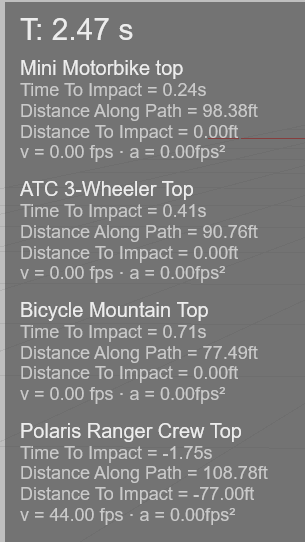 To move the HUD, drag the right-lower corner. Adjust the information that displays from the Preference > Animation panel. To move the HUD, drag the right-lower corner. Adjust the information that displays from the Preference > Animation panel. |
| Auto Smooth Path | Determines if changing the path vertex grips will recalculate control points around it. |
| Edit Parts | Opens the Symbol Parts tool panel in which you can modify the characteristics of the symbol’s individual parts. |
| Model Properties | Opens the Symbol tool panel in which you can adjust the symbol’s size and other properties. |