Circle
To draw a circle:
-
Click the drop-down arrow to choose the circle type:
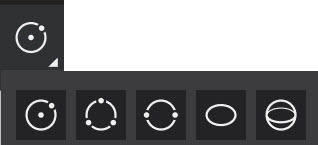 Two point circle
Click a point to place the center of the circle, and then click another point to define the radius.  Three-point circle [C3]
Click a start point for the circle, then click a point to define the far edge of the circle. Click a third time to adjust the circle’s placement and size.  Circle Diameter
Click the edge point the circle, and then drag the mouse cursor to adjust the circle’s size. Click a 3rd point to finalize the circle.  Ellipse [EP]
Click the anchor point for the ellipse, and then click a second point to define the first axis. Move the cursor away from the line and click when the ellipse is the desired size.  Sphere 4 Point [S4]
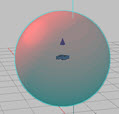
You can freestyle draw a sphere or trace a point cloud sphere in conjunction with the Point Cloud Snap. Click 4 points to create the surface of the sphere. To trace a point cloud sphere, see Modeling a Point Cloud Sphere
-
Use the grips to modify the circle, or edit the properties in the tools panel.
Circle Tool Panel
| X,Y, Z axes | Adjust the position of the object along the axes. |
| Radius | Adjust the radius of the object. |
| Wall Height | In 3D mode, add a 3D wall to the object.Area - Displays the area measurement of the object. You cannot edit this value. |
| Lock Circle | Locks the circle so that circle retains its shape, no matter how you adjust the grips. |
| Expand from center | Retains the center point of the circle along the axis. |
| Orientation | Adjust the Yaw, Pitch, and Roll values for the object. |
| Line Type | Select a line type. |
| Fill Color | Select to fill the circle, and choose a fill color and fill characteristics. |
| Outline Color | Choose the color and characteristics for the circle’s line. |
| Thickness | Choose the line thickness. |
| Virtual Reality Options | Select to display the VRT Settings panel. |
| Layer | Choose an existing layer or add a new layer for the circle. |