Performing Tasks With Workflow Center
FARO Zone 3D offers workflows that you can use to simulate scenarios. These scenarios range from importing data from crime scenes or accidents, to creating reports for complex analysis such as data gathered from the blood spatter analysis tool.
The Workflow Center, along with the Favorites toolbars, guide you through performing the key steps necessary to complete many tasks. See Favorites. Workflow Center also helps you remember how to use tools that you haven't accessed in a while.
The Workflow Center guides you through performing tasks in the software that require you to use multiple tools to complete a project. This tool lists the steps for the tasks, and shortcuts for launching the various tools required to complete a workflow, from start to finish.
To view available workflows:
1. From the Home ribbon, click the Workflow dropdown. You can also access the Workflow Center from the Start page.
2. Select the  Workflow button. The Workflow Center displays.
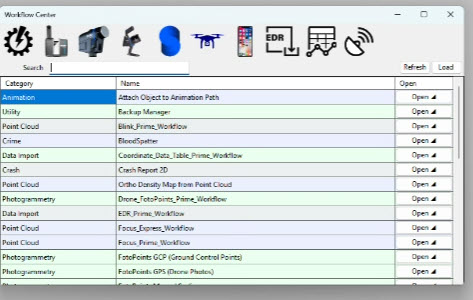
 Focus Express Focus Express |
A simplified workflow to use with data captured with the FARO Focus scanner. |
|
Focus |
A more extensive workflow to use with data captured with the FARO Focus scanner. |
 Blink Blink
|
A workflow to use with data captured with the FARO Blink scanner. |
 Orbis Orbis
|
A workflow to use with data captured with the FAROOrbis scanner. |
 SiteScape SiteScape
|
A workflow to use with data captured with the SiteScape application. |
 Drone Fotopoints Drone Fotopoints |
A workflow to use to create a point cloud from data captured with a drone. |
 Phone Fotopoints Phone Fotopoints |
A workflow to use to create a point cloud from data captured with a mobile phone. |
 EDR EDR |
A workflow to use to import Event Data Recorder (EDR) data. |
 CDT CDT |
A workflow to use for importing Coordinate Data Table (CDT) data. |
 Satellite Image Satellite Image |
A workflow to use for importing a satellite image. |

Select a workflow, and then click Open.
4. The workflow dialog displays. You can move this dialog wherever you need to on your screen.
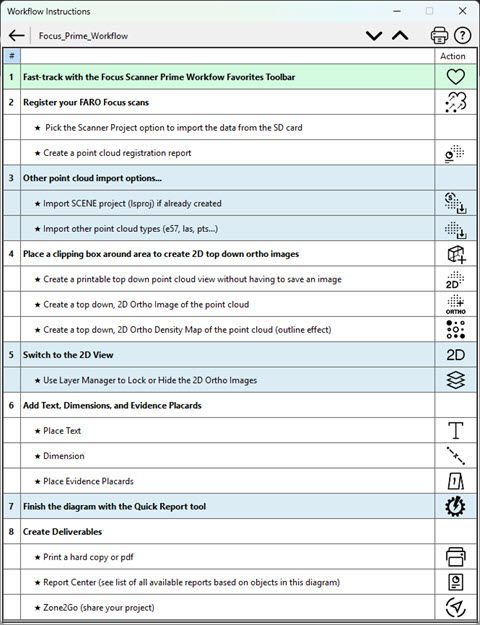
The dialog includes the following:
-
Steps that show the order for completing the tasks.
-
A description of each task.
-
The Action column includes icons that launch the command. You can also launch Favorites toolbars that include options for tasks associated with the action. See Favorites.
4. Follow the steps and complete the actions required to complete the task. If a step is not pertinent to your task, you can skip it.