Library
The FARO Zone 3D symbol library is organized into categories and subcategories. To change libraries, click the Library command to open the symbols category menu, and then select a category. The Symbols ribbon displays options for the selected category. A Custom library displays a3xml custom symbol created or downloaded from 3D Warehouse and saved to the Custom folder.
Browse the libraries to familiarize yourself with the locations of symbols relevant to your application. 3D symbols and 2D symbols are available.
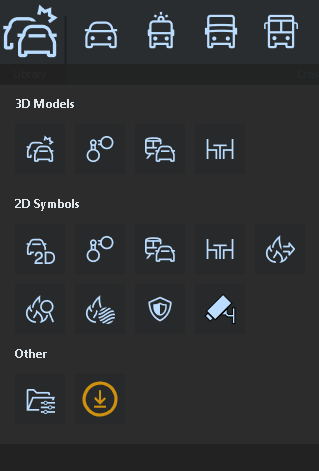
Categories are as follows:
 Crash
Crash
 Crime
Crime
 Transportation
 Scene
Scene
 Fire plan
 Fire investigation
 Fire international
 Insurance
 Security
 Customize
 Download All Symbols You can download all symbols to use when working offline.
After you select a category, the ribbon bar changes to reflect objects pertinent to the category.
To place a symbol from a library:
-
Click a category command to open the sub-category menu.
-
Click the sub-category command in the left column of the menu.
-
Click the desired symbol.
-
Click in the scene to anchor the symbol.
-
Move the mouse to the desired orientation and click to place.
-
Make adjustments in the Symbol tool panel. (See Symbol|Model Tool Panel.)
Turn on Ortho Lock to restrict symbols to exactly horizontal or vertical orientation. Turn on the Auto Snaps mode to automatically snap symbols to existing points or objects.