Edit Project Registration in the Draft View
|
1238888 |
The project draft view is the place where you can work on your project without actually changing the live project. The changes only become part of the live project once you publish them.
-
Click Draft at the top of the Sphere XG Viewer.
-
Then, click the Edit registration icon
 on the right side of the Viewer.
The view stays the same, but the toolbar on the right side will change. In addition, the connections between scans are now displayed.
In the draft view you can:
-
Move scans to the position you want.
-
Add and refine connections.
-
Rename and delete scans, see Inspect Your Project in the Draft View for .
To exit the registration, click the icon again.
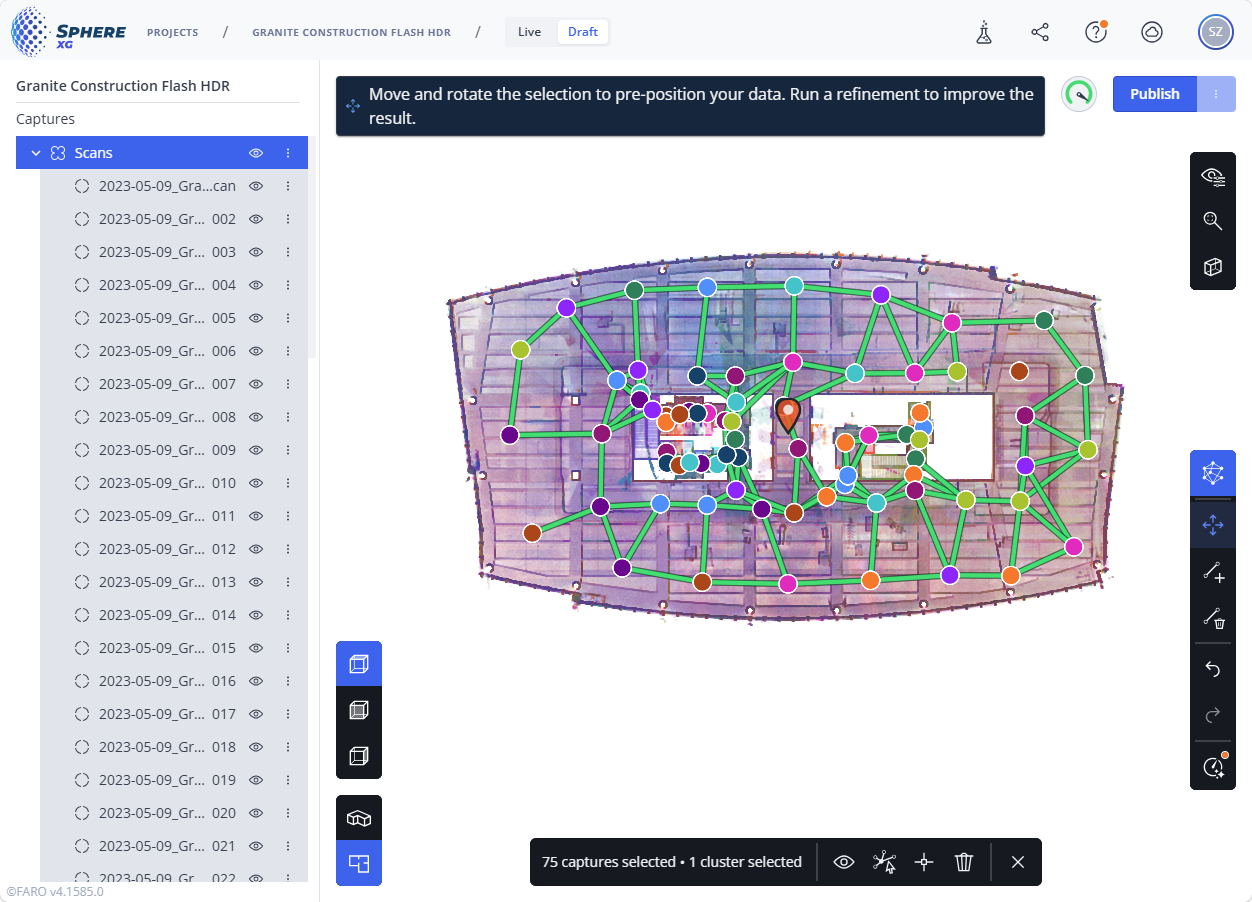
Figure 1-100 Edit registration mode
You can only edit the registration in the 2D view.
Move and Rotate Scan
-
Click the
 icon in the toolbar at the right side of the Viewer.
The icon turns blue. -
Select the scan you want to move or rotate in the project structure view or in the Viewer.
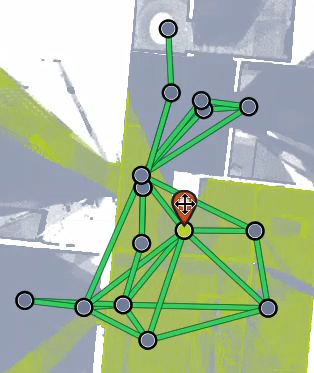
An anchor point is displayed.
-
Click and drag that anchor point to move the selected scan to the position you want.
-
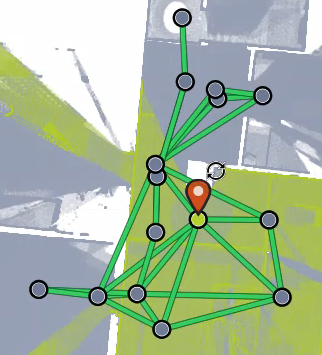
Click outside the anchor point and drag to rotate the scan.
You can zoom in and out using the mouse wheel to check the alignment.
You an also select and then translate or rotate more than one scan. For this purpose, press and hold the CTRL key and then select the scans. If you have selected and moved or rotated more than one scan and these scans are registered to each other, the connections between these scans will persist.
Add or Delete Connections
To add a connection:
-
Click the
 icon.
icon.
The icon turns blue. -
Click the first, then the second scan between which you want to establish a connection.
A connection will be established.
New connections are displayed in gray. Registered connections are displayed green, yellow or red depending on their registration result.
To delete a connection:
-
Click the
 icon.
icon.
The icon turns blue. -
Click the connection you want to delete.
The connection will be deleted.
To exit the connection editing mode click the icon again.
Further Actions Required in Registration
If there are unconnected scans in your project or if the registration failed, the draft view will show that further actions are required, see figure below.
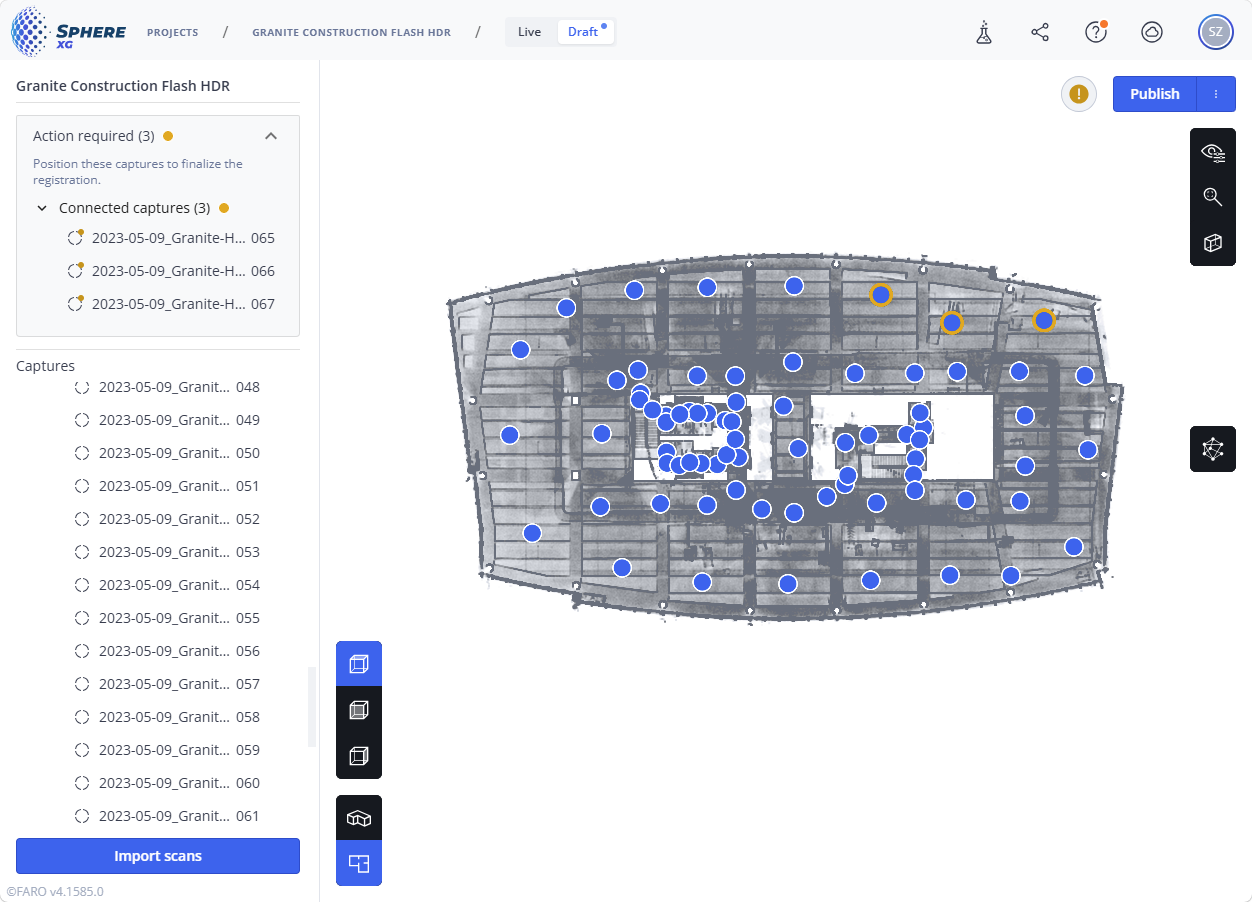
Figure 1-101 Open changes in registration
Undo/Redo Manual Registration Steps
You can undo and redo the following actions:
-
Move or rotate scans.
-
Add or delete connections.
You can undo and redo the last step by clicking the  and
and  icons.
Undoing and redoing is also possible via the CTRL+z and CTRL+y shortcuts (Cmd+z and Cmd+y on Mac).
Rename and Delete Captures and Clusters
See Inspect Your Project in the Draft View.
Discard Changes
To discard changes in the registration view:
-
Click the three-dots menu of the Publish button in the top right corner.
-
Click Discard draft.
Clicking Show changes shows the current changes.
Refine the Registration and Publish Scans
During the refinement process, the scans will be registered at their positions.
If you have made changes but you want to check the refinement before publishing:
-
Click the Refine icon
 in the toolbar on the right side.
When the refinement has finished you can again check the result, make changes and refine again or publish.
OR
If you want to refine and publish in one go or if you do not want to refine before publishing:
-
Click the Publish button.
Sphere XG will detect whether or not the project has already been refined and will offer to refine before publishing.
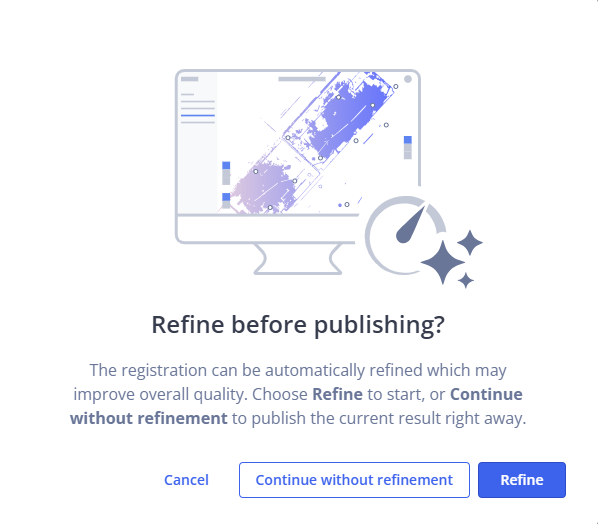
Figure 1-102 Confirm or skip refinement before publishing
-
Click the option you want.
When the refinement is done or if have chosen to continue without refinement, the Ready to publish form will be displayed:
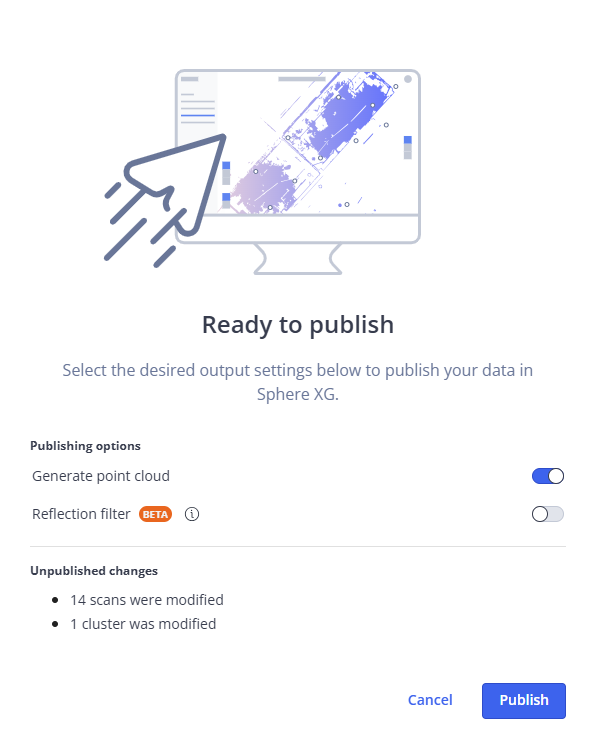
Figure 1-103 Publishing settings
-
Make the publishing settings you want. See below for details.
-
Click Publish.
The project will be published.
Publishing Options
Generate point cloud
If you enable this switch, all scans will be merged into a point cloud before publishing.
Otherwise, only the overview map with registered scans and 360° photos will be published. Note that 3D data will not be available.
Reflection filter (beta)
If you enable this switch, reflections caused by reflective surfaces will be filtered out.
This may increase processing time. It is recommended to disable the filter if there are no reflective surfaces. Note that this feature is still in beta state.