Export Scans to Structured .e57 Format
|
1238888 |
You can export selected scans or all scans of a point cloud to structured .e57 format. The export will retain the original raw scan points as well as the scan organization in clusters and scan meta data. You can also include 360° photos in the export.
-
Click the three-dots menu of the point cloud containing the scans you want to export.
-
Select Scans export from the context menu.
By clicking the tabs at the top of the form, you can also change to the point cloud and orthophoto export, see Export a Point Cloud or an Orthophoto with a Clipping Box.
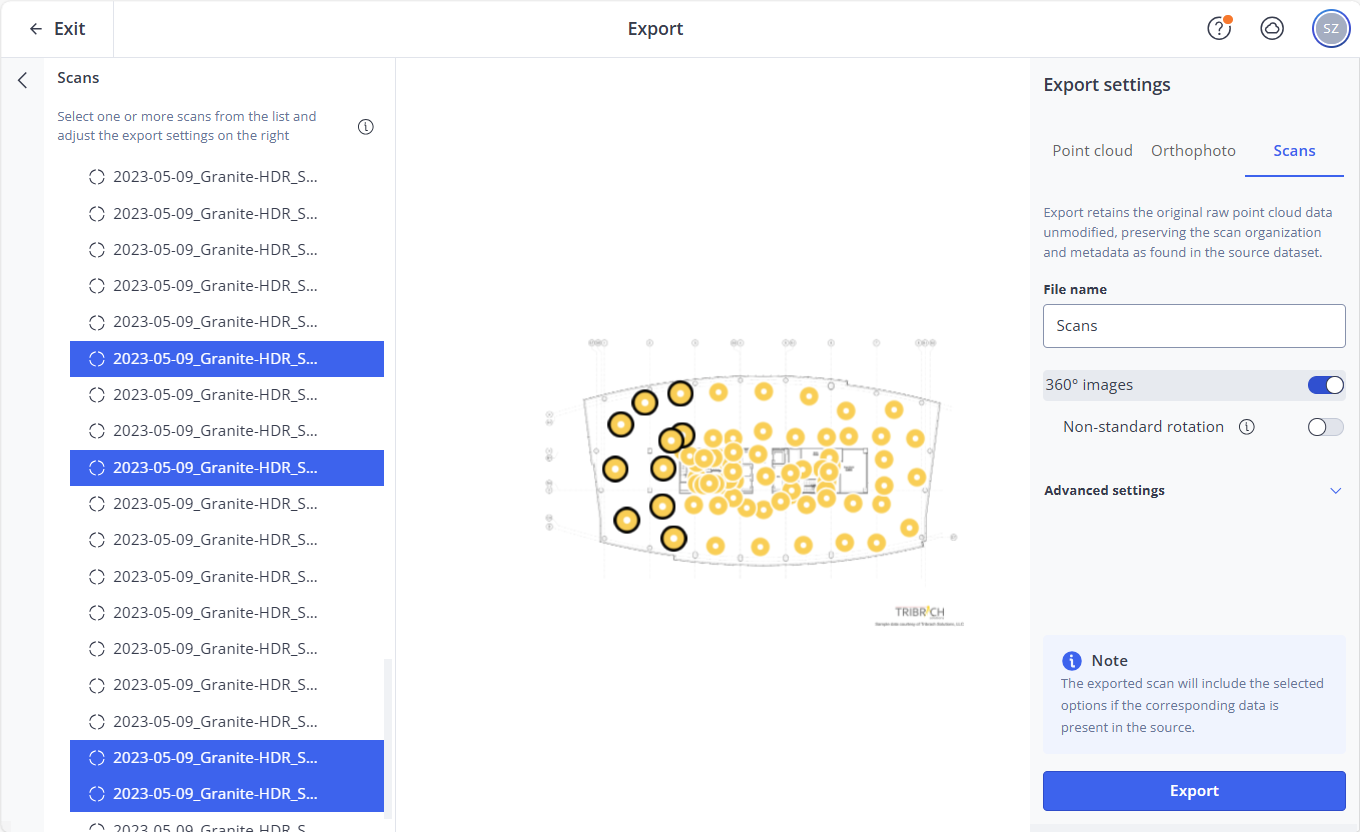
Figure 1-130 Export to structured .e57
-
Select the scans you want to export with one of the following options in the project structure view or in the Viewer:
-
Click to select a single scan
-
CTRL + Click to add scans from the current selection.
-
SHIFT + Click to select the scans between the first and last click. This works only in the project structure view.
-
CTRL + Click cluster to select the scans within the cluster.
The selected scans will be highlighted in the project structure view and in the Viewer.
Deselecting scans works the same way.
-
On the Scans tab of the Exports settings, enable and define the settings you want
Independent of your selection, the export will only contain the settings that are actually available in the project -
Click Export.
The export will start.
Export Settings
Select the settings you want to apply to the export. Note that the export will only include the selected settings if they are available in the project.
360° images
If you activate this switch, the 360° photos of the selected scans will be exported, too.
Non-standard rotation
If you open the exported .e57 export in a third-party software, and the 360° photos are turned around the z axis by 180°, you can mark this checkbox in Sphere XG and then export again to correct the representation in the third-party software.
By default, you do not need to activate this switch.
Intensity values
If you activate this switch, intensity values (grayscale) will be included in the export.
Invalid points
If you activate this switch and the 360° switch is disabled, color information will be exported for areas without 3D data, for example the sky. This setting does not provide 100% results.
Color values
If you activate this switch, color values will be exported.
Subsampling factor
Subsampling is the factor by which point density will be reduced. Enter a number between 1 (no subsampling) and 20 (max subsampling) in this field.
Optional: Activate the Include 360° images switch to export the 360° photos of the selected scans, too.
Check Progress and Download Exported .e57 File
Click the cloud activity icon  at the top right corner of the screen to open the Cloud activity form.
The progress is shown by a progress bar. You will be notified by email once the export is complete.
To download the exported .e57 file:
-
Click the
icon. -
Click the Download link.
You can also download the .e57 file by clicking the download link in the notification email. Note that the link the email will expire after 30 days.