Import an Area into your Project
|
1238888 |
By default, you must upload a 2D plan, layout or schematic as an area to your project upon project creation. This will be the first area of your project. While working with the project, you can add further documents (.pdf, .png, .jpeg and .jpg format) to create more areas. For example, a capture of a building may have one area for each floor. If you upload a document as an area, the document, i.e. the sheet, on which the area is based will also be visible as a sheet within the area. See Import an Area into your Project for more information.
An area is the physical representation of a location in your project, for example the first floor of a building, hangar A, etc. A project may have more than one area. Areas contain, scans, sheets, 360° photos, etc. They are shown with icon  in the project structure view. In HoloBuilder and the JobWalk App, areas are called sheets. When you import a document as new area, it is in the first place a spatial container but it is visually represented by the uploaded document, i.e. the sheet. You can move an area within the project structure view by simply dragging and dropping the area to the position you want.
-
Click the Import data button in the project structure view.
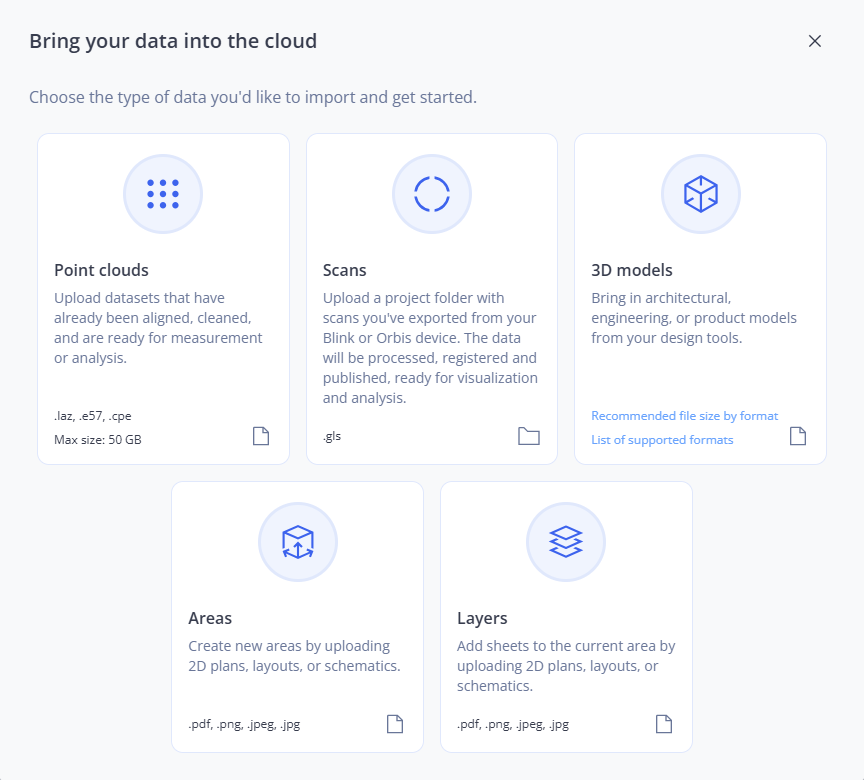
Figure 1-116 Import form
-
Click the Areas tile.
For existing projects, you can also drag the file directly onto the Import form. If the file format is supported for different data sets, a selection dialog will be displayed.
-
Select the document you want from the file system and confirm or drag the document onto the page.
-
For multi-page documents (.pdf): Mark the checkbox of the pages that you want to import.
You can also enter the pages you want to import into the selection field. Separate ranges with a hyphen and single pages with a comma.
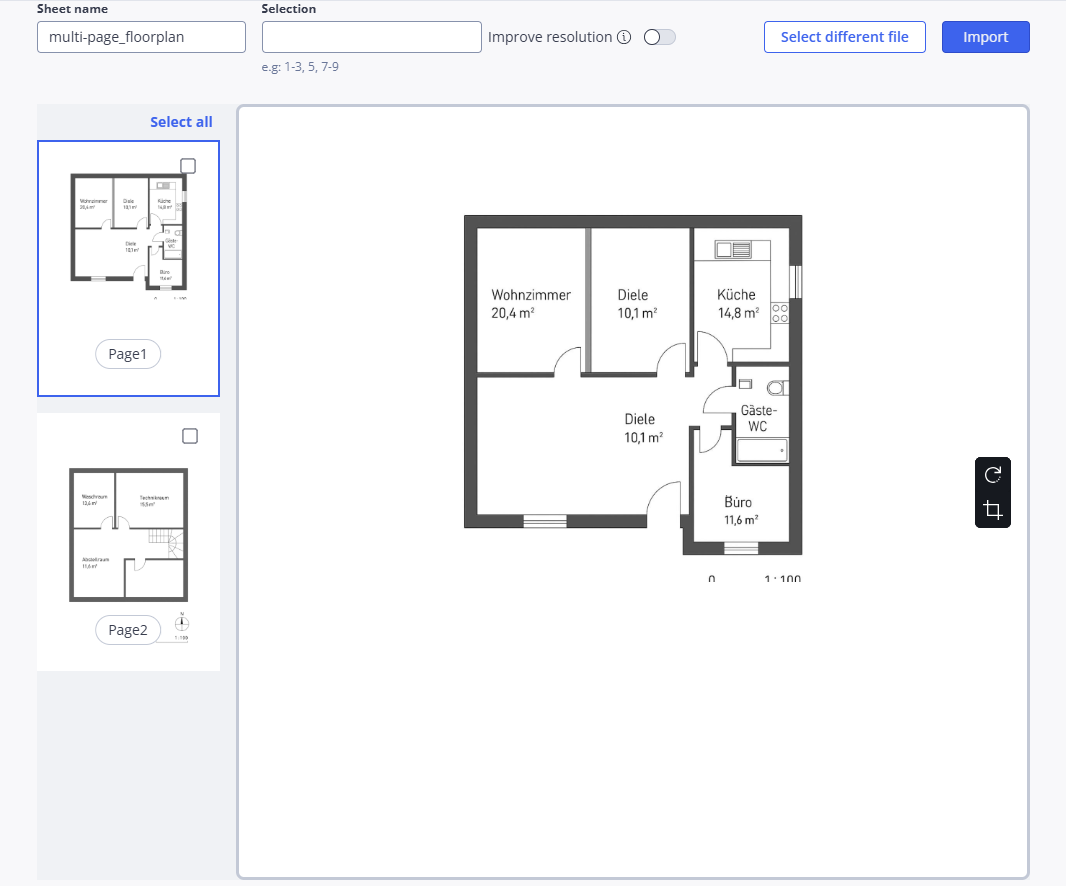
Figure 1-117 Multi-page floor plan handling
-
Click the Import button.
If you are importing a multi-page .pdf file and do not select one or more pages, the first page will be selected and imported automatically.