Import a Sheet into your Project
|
1238888 |
Sheet is a general term used in Sphere XG, HoloBuilder and the JobWalk App describing a layout, a floor plan, a 2D schematics, and so on. In other words, a sheet is a 2D image or document that can be used to get an overview of a capture, for example a building. It is created by users, software or a CAD system. A sheet may include text, a legend and scale information.
You can import further documents to create more sheets.
-
Click the Import data button in the project structure view.

Figure 1-118 Import form
-
Click the Sheets tile.
For existing projects, you can also drag the file directly onto the Import form. If the file format is supported for different data sets, a selection dialog will be displayed.
-
Select the document you want from the file system and confirm or drag the document onto the page.
-
For multi-page documents (.pdf): Mark the checkbox of the pages that you want to import.
You can also enter the pages you want to import into the selection field. Separate ranges with a hyphen and single pages with a comma.
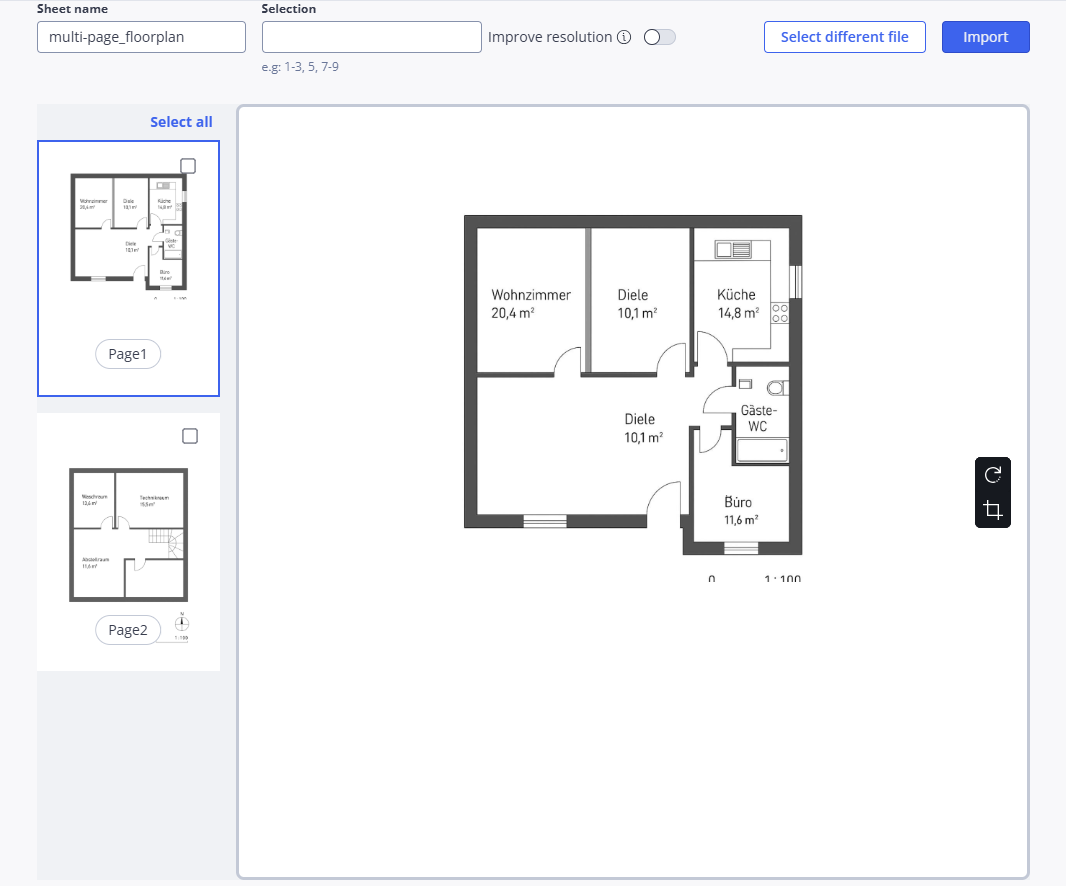
Figure 1-119 Multi-page floor plan handling
-
Click the Import button.
If you are importing a multi-page .pdf file and do not select one or more pages, the first page will be selected and imported automatically.
The Sheet is added to the current area of the project, i.e. under the node of the current area. The sheet will be visible in the Sheets form. The functionality is the same as described in Add, Edit or Delete Sheets in Existing Projects.
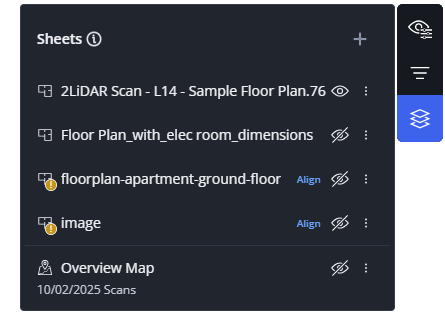
Figure 1-120 Imported sheets and an overview map
Sheets that are not yet aligned, are displayed with a yellow exclamation mark and an Align link. At the bottom of the form, overview maps are displayed. Overview maps are generated top views of data sets that were uploaded to Sphere XG, for example from SCENE.
After you have added a sheet, the alignment page is opened automatically, see Align a Sheet to another Sheet.