Edit Waypoints
|
1238888 |
You can edit the names of waypoints, i.e. 360° photos, 2D photos and location markers.
You can edit a waypoints in:
-
The project structure view. In this view, you can only edit the waypoint names.
-
In the dropdown in the walkmode view. In this view, you can edit the name of a 360° photo, the time point and assign tags. You cannot edit the name of a 2D photos or location markers in this view.
Edit the Name of Waypoints in the Project Structure View or via Context Menu
-
Click the three-dots menu of the waypoint you want to edit in the project structure.
A context menu will be opened. You can also right-click the waypoint in the Viewer to open the menu.
-
Click the Edit
 icon.
icon. -
Change the name.
-
Confirm by clicking the
 icon or pressing ENTER.
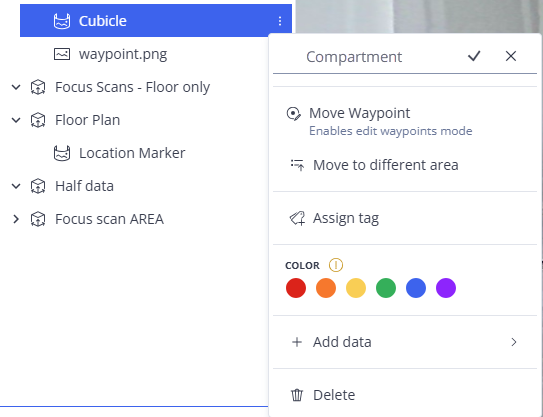
Figure 1-179 Edit the waypoint name in the project structure view
Edit the Name and Time Point of a 360° Photo and Assign Tags in the Walk Mode View Dropdown
-
Click the 360° photo to open it in the walkmode view.
-
Click the three-dots icon in the top left corner of the Viewer to open the time travel dropdown.
-
Select the
Edit entry.
The Edit form is opened.
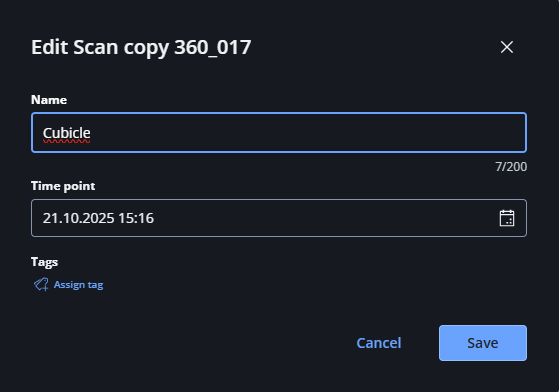
Figure 1-180 Edit photo name and time point in the walkmode view dropdown
-
Enter the name you want.
To change the time point:
-
Click the calendar icon in the Time point field.
-
Select the date and time you want.
You can also enter the timepoint manually in the Time point field. The time point affects how the 360° photo will be grouped in the dropdown, see also Time travel Through your Project.
-
Click Save.
To assign tags:
-
Click Assign tags to open the Assign tags form. See Assign Tags via the Three-dots Menu for more information on assigning tags.