Move Waypoints to another Area
|
1238888 |
In the project structure view, you can move the following types of waypoints to another area of your project.
 Waypoint with a 360° photo, i.e. static HoloBuilder captures, see Capture 360° photos and create tours with the JobWalk App.
 2D photo.
 Waypoint with a 360° photo and an additional 2D photo.
 Location marker: These location markers are placeholders for images that should be added. See Create new Waypoints for more information.
Move waypoints to another area via the context menu:
-
In the project structure view, click the three-dots menu of the waypoint.
You can also right click the waypoint in the Viewer. -
Select menu entry
 Move to different area.
The following form is displayed.
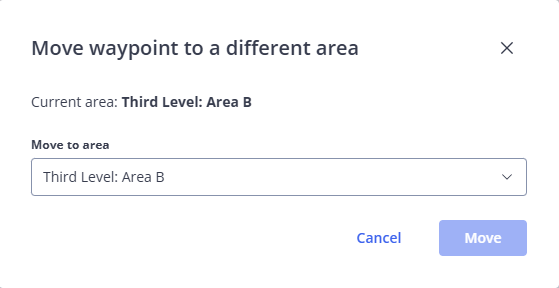
Figure 1-189 Move waypoint to different area
-
Select the area to which you want to move the waypoint.
-
Click Move.
The waypoint will be moved to the selected area.
You can also move these waypoints to a new area by drag and drop.
It is also possible to move a 360° photo to another waypoint in the same or in another area, see Move a 360° Photo to another Waypoint in the Same or a Different Area.