Remove Members and Projects from Group and Delete Group
|
1238888 |
If you no longer need a group, you can delete it to keep your Dashboard tidy and organized.
-
In the task panel of the Sphere XG Dashboard, select menu entry Groups.
-
Click the tile or list entry of the group that you want to delete.
-
Make sure that the group has no archived projects.
Otherwise, unarchive the corresponding projects and move them to another group (see description below), then archive them again. Or delete the archived projects if you no longer need them.
Now, you must move the active projects to another group.
-
Go to the Active Projects tab and assign the projects of this group to other group(s), see Change the Project Management (Group, Project Manager).
Otherwise, you will get an error message if you try to delete the group.
Now, you must remove all members (users and teams) from the group.
-
Hover the mouse pointer over a member and then mark the checkbox in this line.
Repeat this for all members but the Group Manager. The Group Manager must be the last member you delete. Otherwise, you will get an error message because a group needs at least one Group Manager. -
Click Remove Members in the list header.
The selected members are removed from the group. -
Delete the Group Manager the same way as the other members.
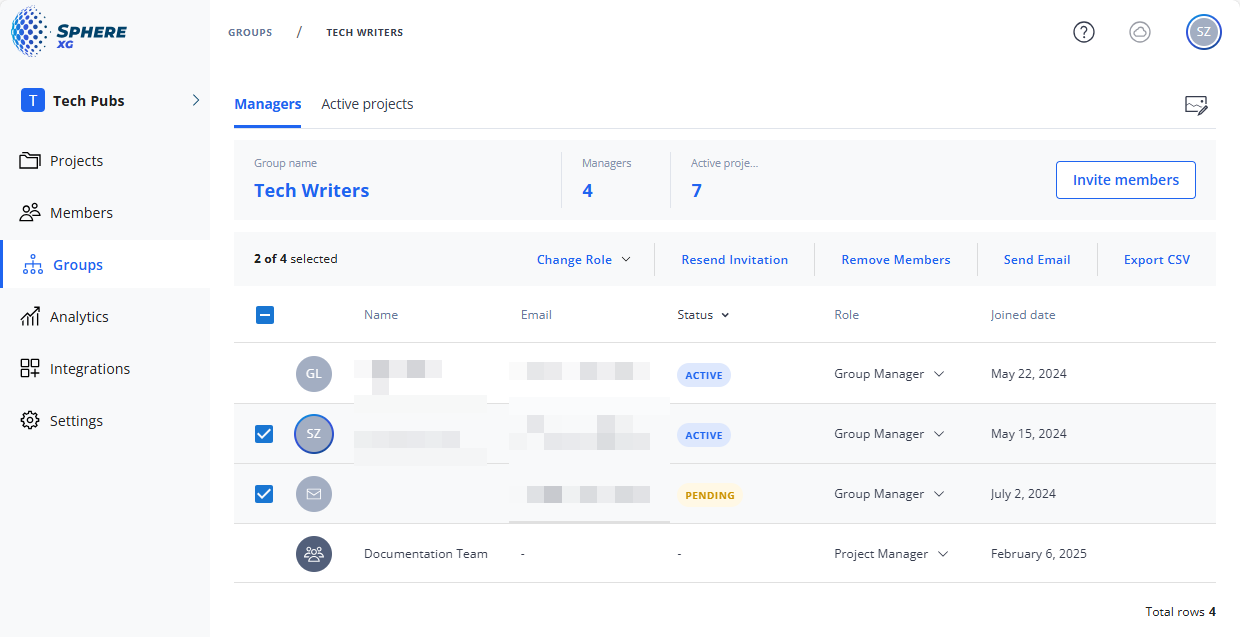
Figure 1-56 Remove members from group
The removed members are only removed from the group, i.e. their accounts are not deleted. But if the removed members do not have access to any other group, they can no longer work on projects in Sphere XG. Make sure to assign these members to other groups.
For information on deleting members from Sphere XG, see Remove Users and Teams from a Workspace.