Change the Project Management (Group, Project Manager)
|
1238888 |
You can assign projects to another group and Project Manager, for example if the project has reached another stage and you need to change the responsibility for this project. You must also assign projects to another group before you can delete a group.
Change the Group and Project Manager Role on the Projects Page
-
Select the entry Projects in the task panel.
-
Click a project tile or list entry.
The Overview Tab is displayed by default.
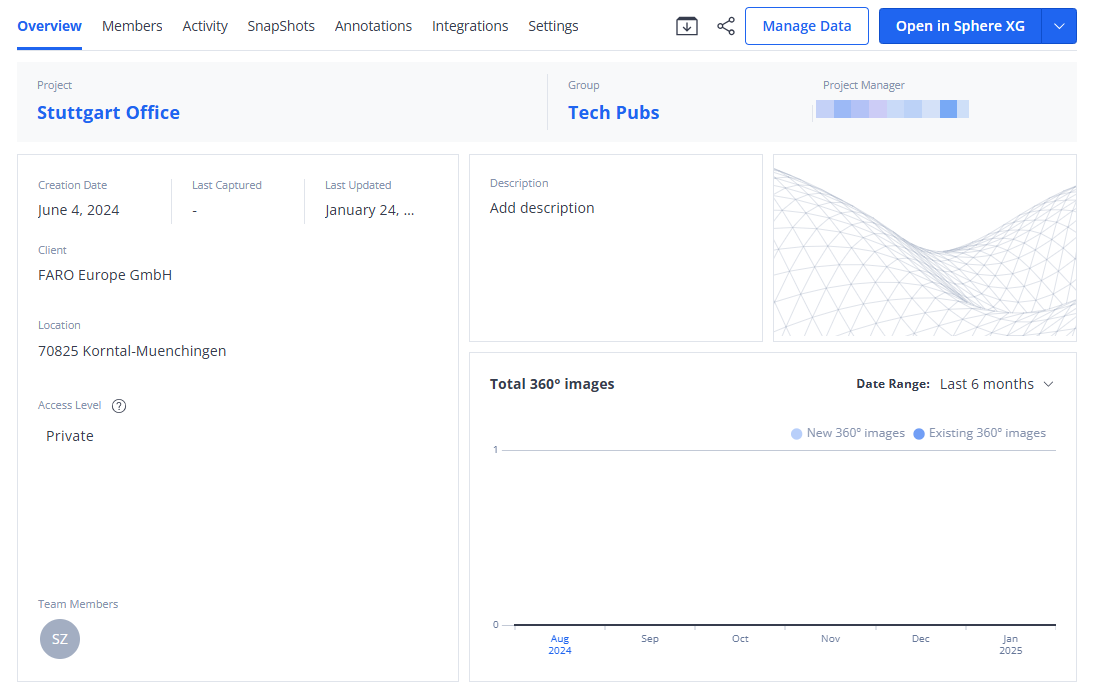
Figure 1-52 Project overview, Overview tab
-
Click entry Group or Project Manager in the project summary line at the top.
In both cases, the following form is displayed:
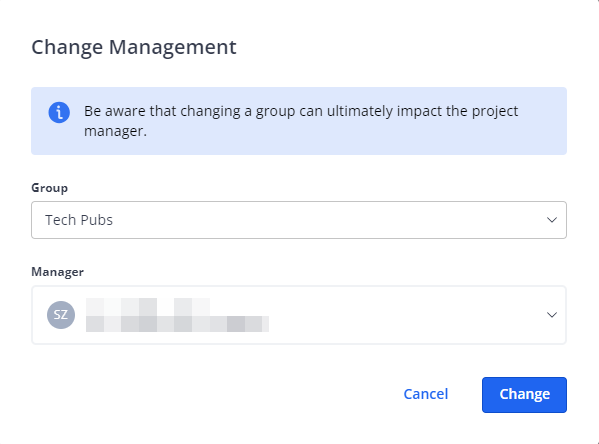
Figure 1-53 Change project management
Changing one of these management assignments may also mean that you must change the other, because the Project Manager must be a member of the group to which the project is assigned.
-
Select the group and/or the Project Manager from the dropdown lists.
You can select either a single user or a team as project manager. -
Click Change to confirm.
Change the Group Manager and Project Manager Role on the Groups page
Within the group which is responsible for the management of a particular project, you can change the Group Manager and Project Manager role.
-
In the task panel of the Sphere XG Dashboard, select menu entry Groups and go the Managers tab.
-
Open the dropdown list in column Role and select the role you want to assign to a user or a team.
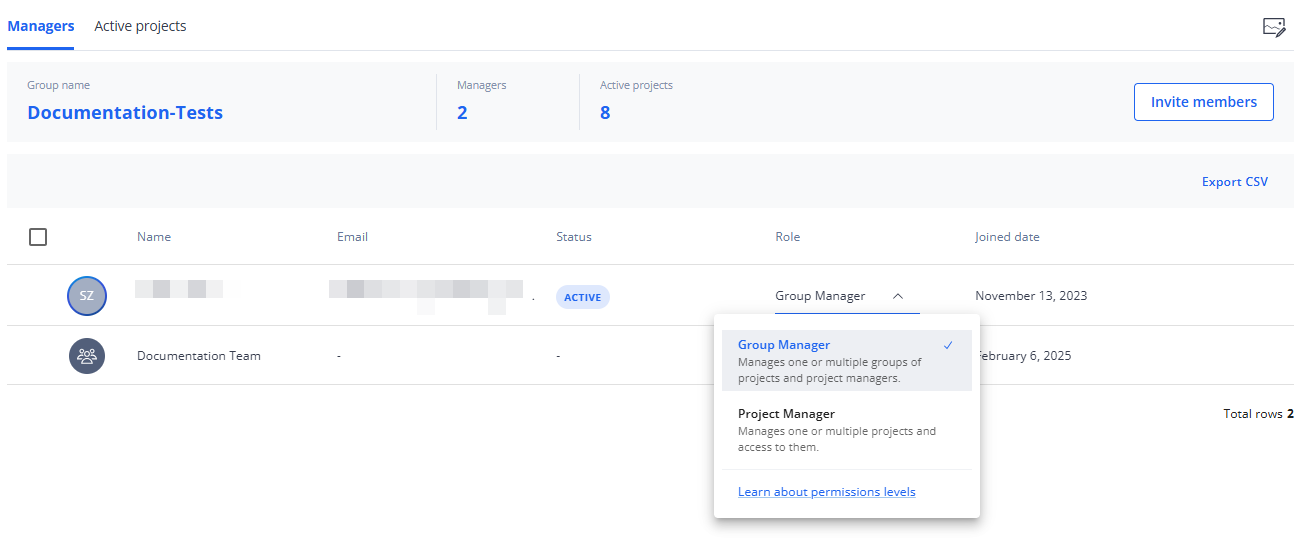
Figure 1-54 Change Group Manager or Project Manager role