Move Waypoints within an Area
|
1238888 |
In the 2D view, you can move the following waypoints to a new position:
 This is the generic waypoint icon. You can move such a waypoint if it contains a 360° photo (static HoloBuilder captures, see Capture 360° photos and create tours with the JobWalk App).
 Waypoint with a 2D photo.
 2D photo.
 Location marker, see also Create new Waypoints.
With this option, you can only move the waypoint within the same area. See Move Waypoints to another Area if you want to move a waypoint to a different area. It is also possible to move a 360° photo to another waypoint in the same or in another area, see Move a 360° Photo to another Waypoint in the Same or a Different Area.
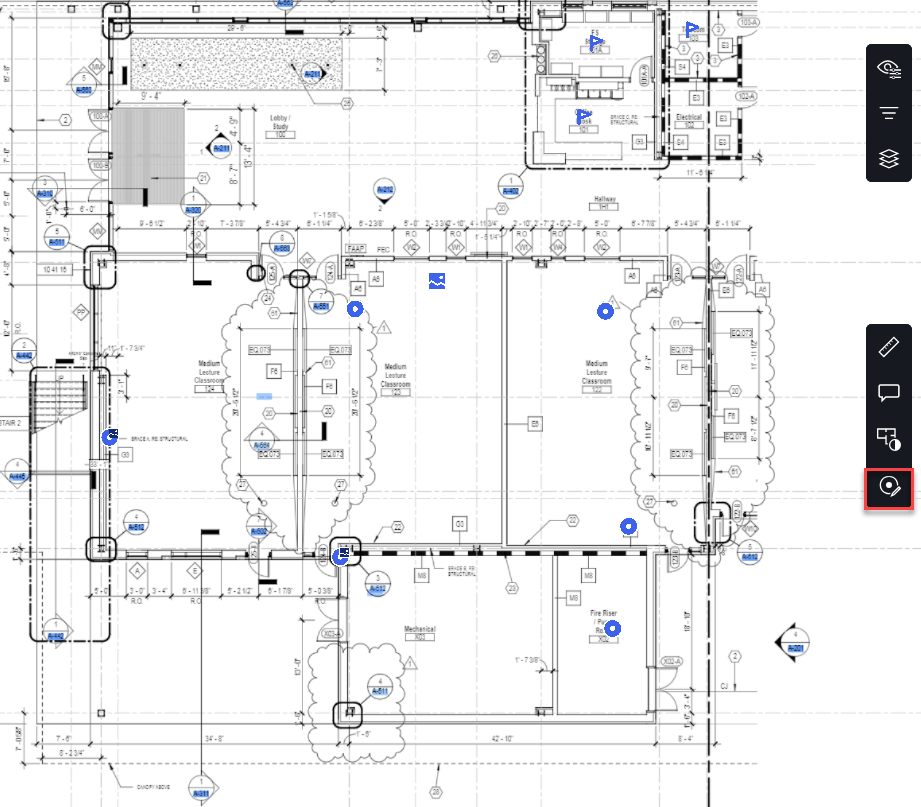
Figure 1-187 Edit waypoints in the 2D view
-
Click the
 icon in the toolbar on the right side.
 -
Click and hold the waypoint you want to move.
-
Drag the waypoint to the new position.
-
Click Apply changes in the toolbar at the bottom to save your changes.

Figure 1-188 Edit waypoints toolbar
In this toolbar you can also undo or redo your latest change, cancel the operation and set location markers.