Project: Annotations Tab
|
1238888 |
On this tab, you can find the annotations of your project. For more information on creating and managing annotations, see Create and Manage Annotations.
See also Common Features in the Dashboard Tables for more information on the general table structure and content.
To open this tab:
-
Select the entry Projects in the task panel.
-
Click a project tile or list entry.
-
Click the Annotations tab.
By default, the table view of the project annotations will be opened. To open a calender or board view of the annotations, click Calendar or Board. See below for more information on these options.
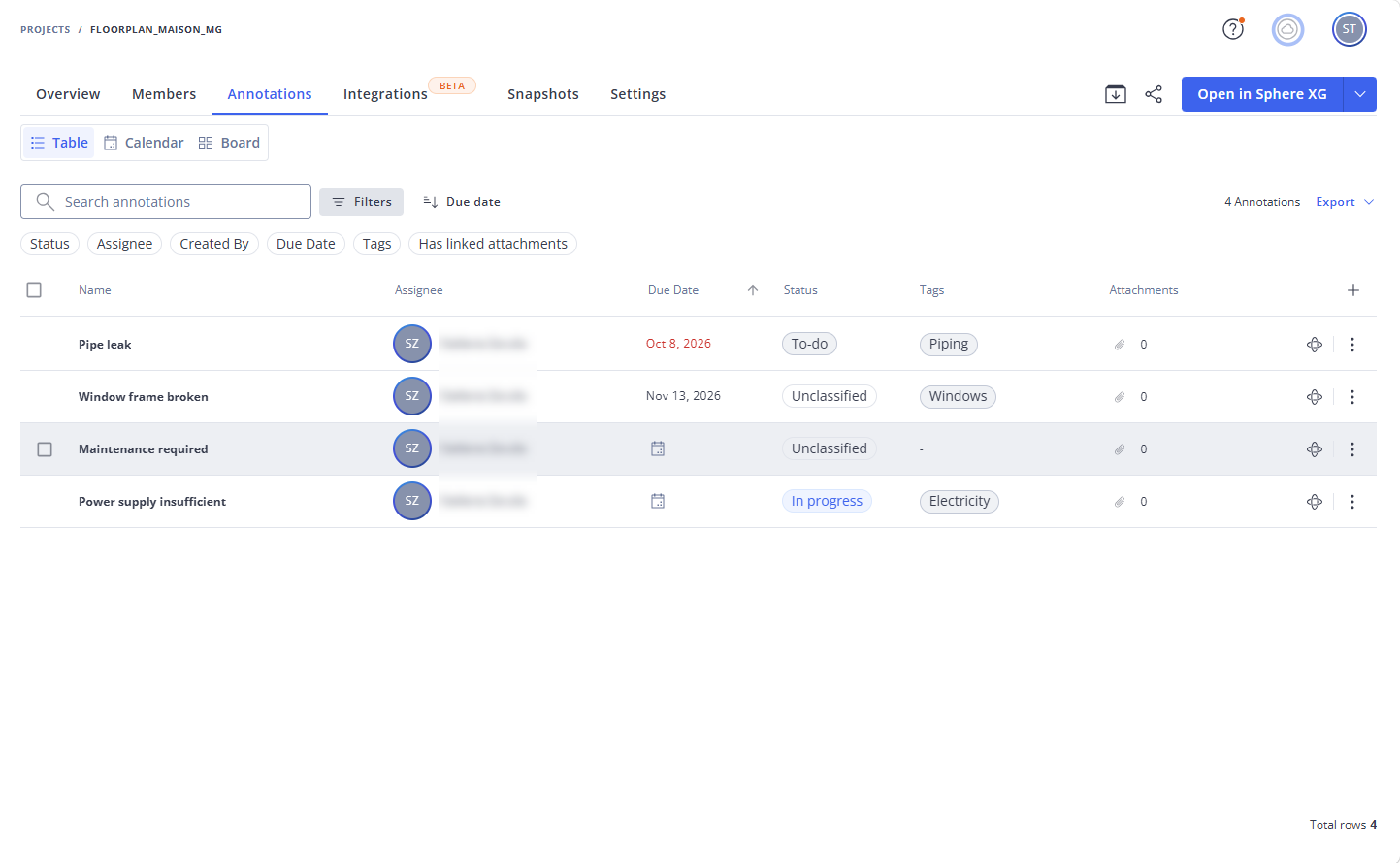
Figure 1-30 Project overview, Annotations table view
Open in Sphere XG: Opens the project in the Sphere XG Viewer. Depending on the settings, you can also open the drop down and select Open in HoloBuilder to open the project in the WebEditor.
Filters: You can use various annotation parameters as filter criteria. You can define these parameters when you create or edit an annotation. The number of active filters is displayed on the filter button, for example  for one active filter.
Annotations List
This list contains the annotation properties that you can define while creating the annotation. Note that it is not mandatory to assign a user or team, a status or a due date to an annotation. You can also just use annotations as additional information markers in a project.
 Hover over an annotation to display a checkbox. This checkbox allows you to select the current annotation. To select all annotations, mark the checkbox at the top of the list.
Name: Name of the annotation.
Assignee: Name of the user or team to whom the annotation is currently assigned. You can change the assignee on this tab.
Due date: Date on which the work on the annotation must be completed. If an annotation is overdue, the date is displayed in red.
Status: The status of the annotation. You can change the status on this tab.
Tags: Name of a tag which is assigned to the annotation. If more than one tag is assigned, the number of further tags is displayed, for example +1 if there is a total of two tags. See Create and Manage Tags for more information on tags.
Attachments: Shows the number of attachments of the annotation.
You can change the assignee, the due date, the status as well as the attachment by simply clicking in the corresponding column of the annotation.
Edit, Share and Open an Annotation
Clicking an annotation opens a side bar on the right side.
On the Info tab of this side bar, the following options are available:
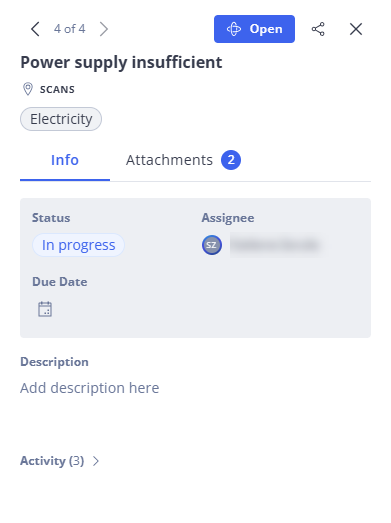
Figure 1-31 Info tab
 Share: Opens a popup with a link to the annotation which you can copy. You can then send this link via email or other communication tool to a colleague.
 Open annotation: Opens the annotation in the Sphere XG Viewer.
How to edit: You can edit the name, status, due date, assignee and description of the annotation by clicking the intended item.
Activity: Shows the operations of the annotation since it has been created.
On the Attachments tab of this side bar the following options are available:
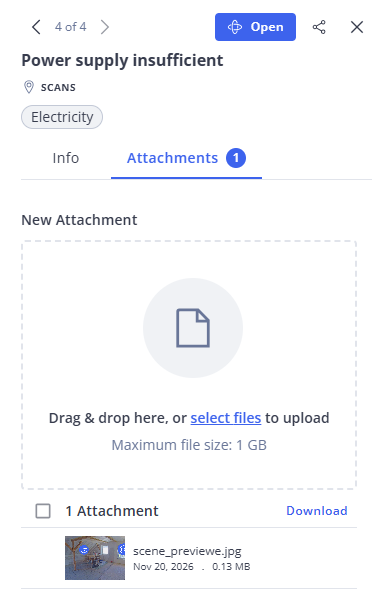
Figure 1-32 Attachments tab
New Attachment: drag and drop a file onto the upload field or click the link to select a file from your file system. Note that the maximum file size of an attachment is 1GB.
Download: Click the Download all link to download all attachments.
View attachment: Click the attachment to open or download it. Images are displayed directly in the browser tab, other files which can be opened in the browser, for example .pdf files, are opened in a new browser tab. Files which cannot be opened in the browser, e.g. .txt files, are downloaded.
If you hover the mouse pointer over an attachment, the following options are shown:
 Download the current attachment.
 Delete the current attachment.
Annotation Calendar View
Click Calendar at the top of the screen.
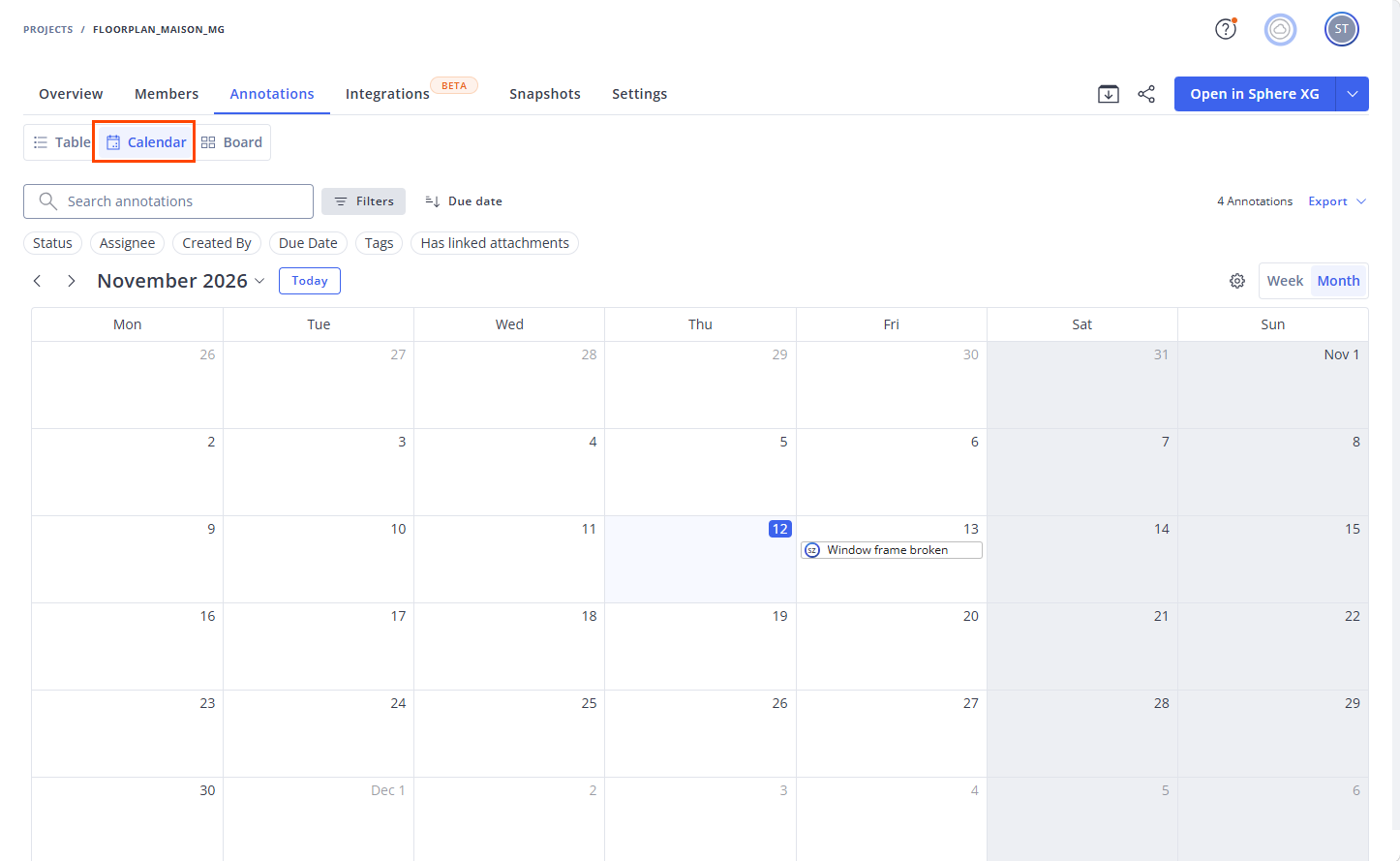
Figure 1-33 Project overview, Annotations calendar view
The calendar view shows the project annotations with a due date. The other options on this page are the same as on the table overview.
Annotation Board View
Click Board at the top of the screen.
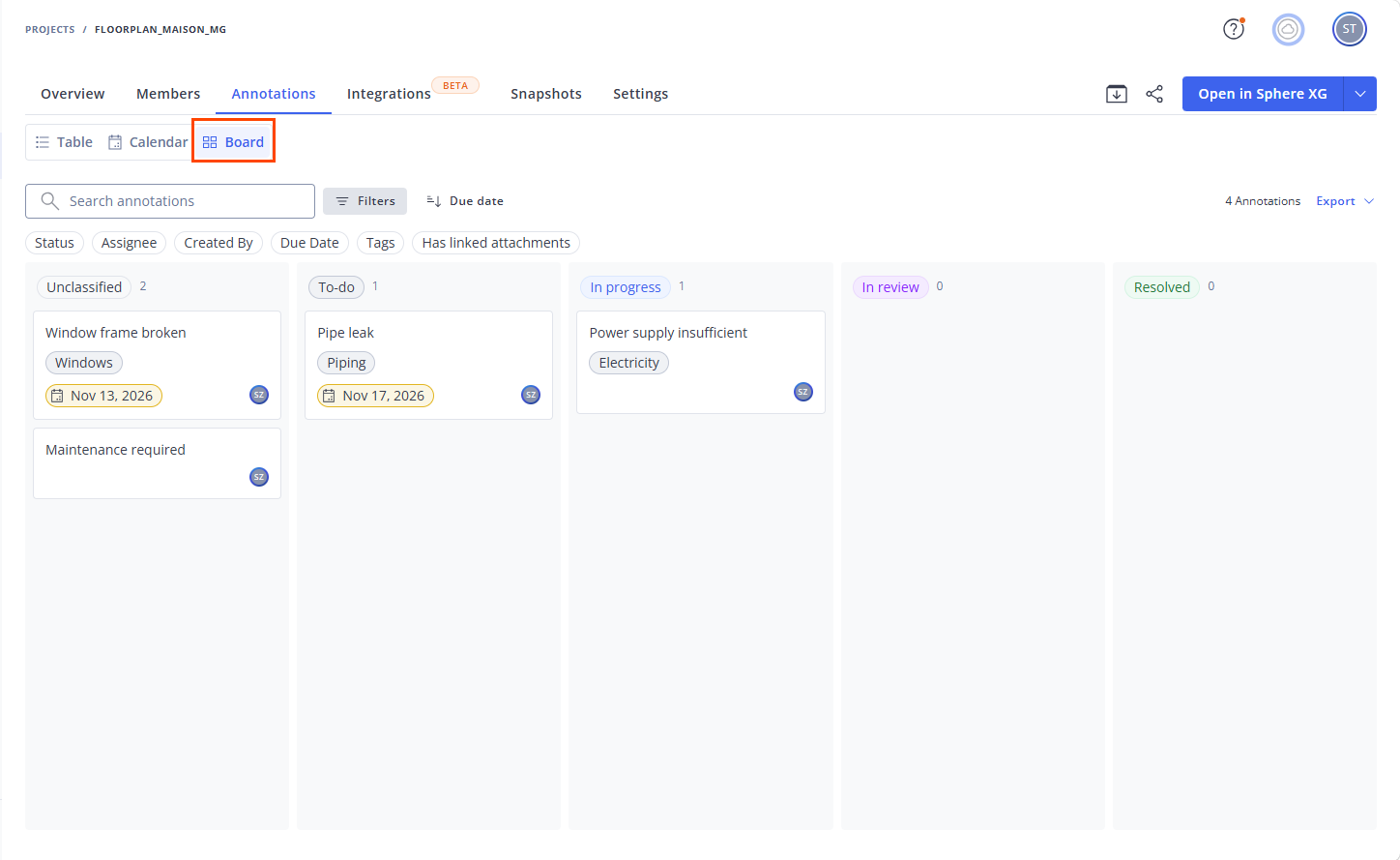
Figure 1-34 Project overview, Annotations board view
The board view shows the project annotations with a status. The other options on this page are the same as on the table overview.
You can grab and move annotations between the columns of the board which will change the annotation status.